This is the order to do things in when one season ends and the next begins. Each phase below is a short set of steps. Do the phases in order: the one rule that matters most is finish the old season, then advance, then draft.
Do not run next season's draft before you advance the league. The draft adds players to next season's rosters, and League Toolkit will not advance a league whose next season already has roster records.
The checklist
| Phase | Who needs it |
|---|---|
| 1. Load the final results | Every league |
| 2. Awards, Hall of Fame and recaps | Optional |
| 3. Renew contracts | Contract leagues |
| 4. Advance to the next season | Every league |
| 5. Owners and league structure | Optional |
| 6. Settings, constitution and calendar | Every league |
| 7. Pre-draft roster cutdown (optional) | Leagues that cut before the draft |
| 8. Set up the draft | Every league |
| 9. Run the draft | Every league |
| 10. After the draft | Depends on your game |
| 11. Pre-season cutdown | Leagues that cut down to a roster limit |
| 12. Pre-season waiver draft (optional) | Leagues that use the Waiver Wire Draft |
Once the season is under way, loading the schedule, results and recaps is covered in During the season at the end of this page.
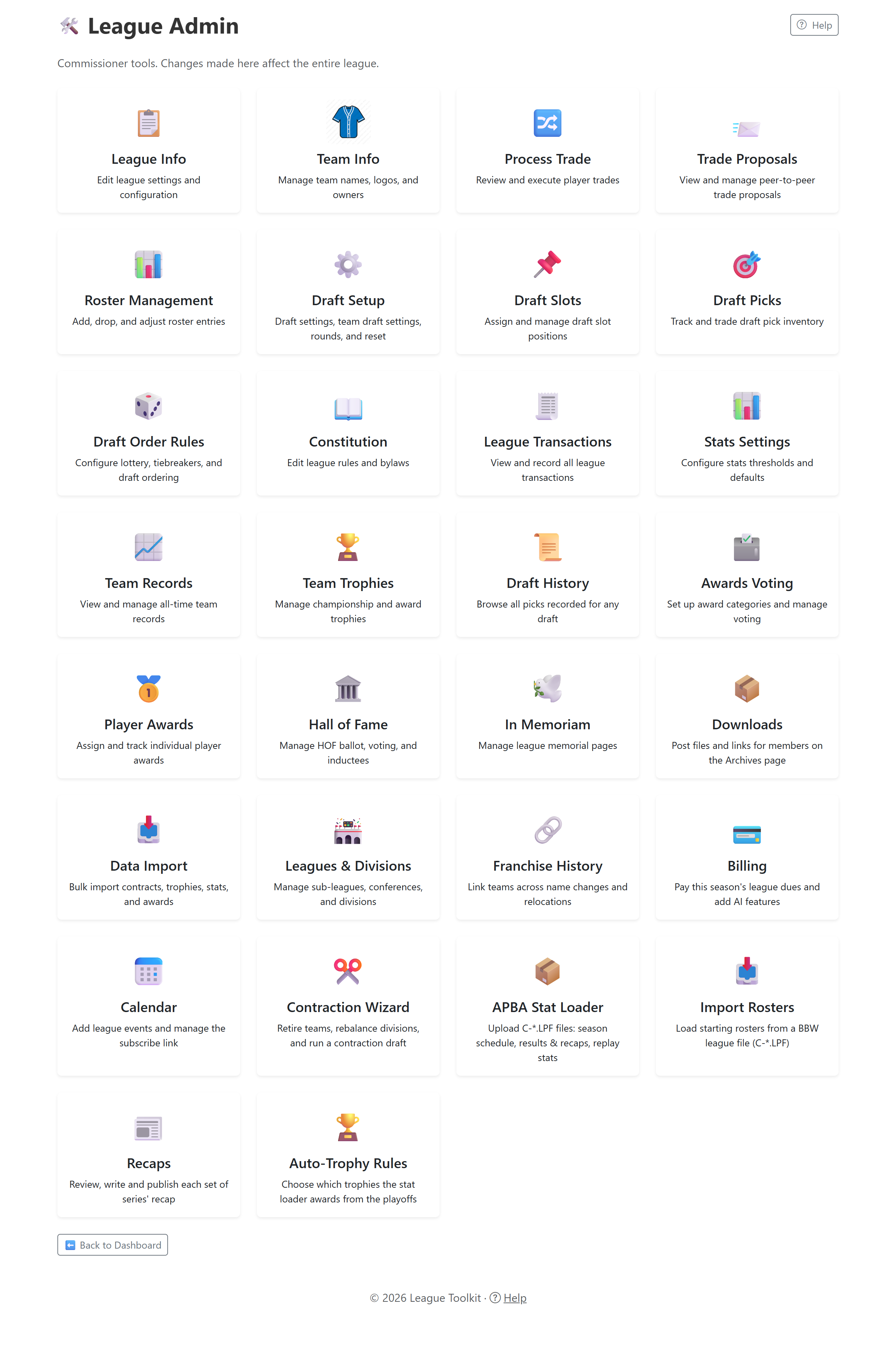
Everything here starts from League Admin. Open your league, then choose the League Admin tile on the dashboard.
1. Load the final results
Last season's final stats and standings have to be in League Toolkit before you advance. The standings matter most: they are what next season's draft order is built from.
These steps are for APBA baseball leagues. Diamond Mind, APBA GO and Action PC leagues use their own loader tile on League Admin (Diamond Mind Import, APBA GO Import, APC Baseball Loader, APC Football Loader or APC Hockey Loader) and follow the same idea: load the final file, with standings.
On League Admin, choose APBA Stat Loader.
Scroll to End of Season Results.
Choose Choose Files and select the final regular-season file and the file for every playoff round. Hold Ctrl to select more than one.
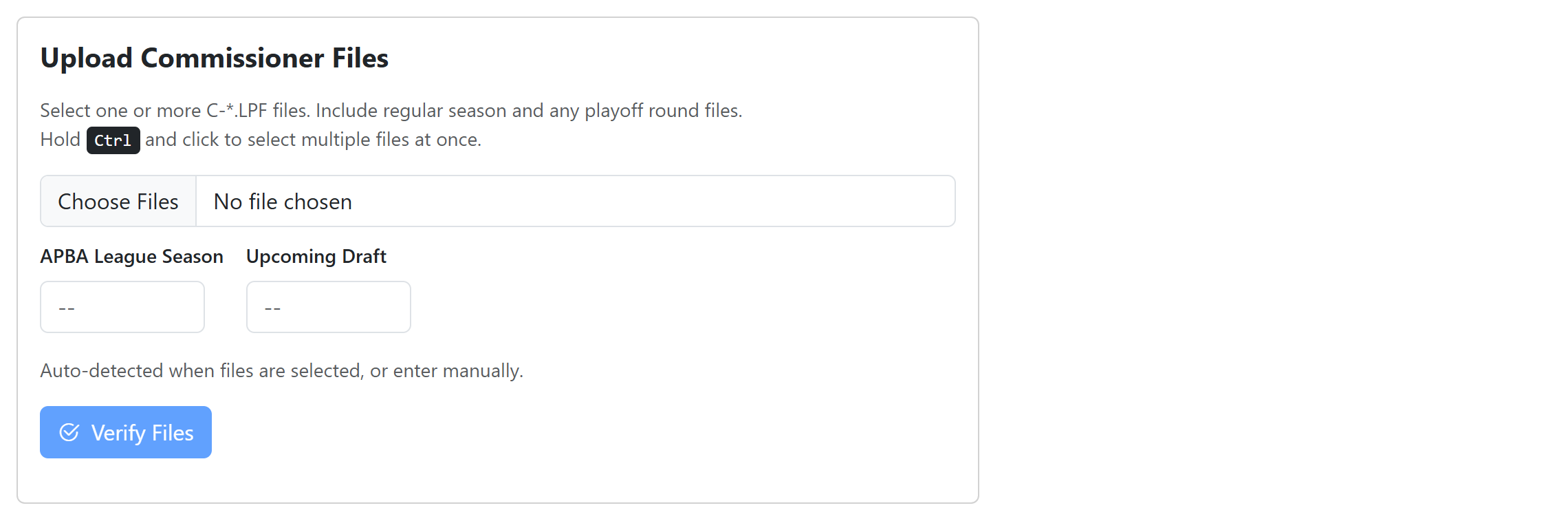
Check that APBA League Season shows the season you just finished and Upcoming Draft shows the next one.
Choose Verify Files. Every team in the file should show a green tick under Match.
Choose Continue.
On Import Options, tick what you want loaded. Most leagues tick everything. Tick Compute Auto-Awards only on this final load, after every playoff round is in.
Choose Extract & Preview and check the standings and leaders look right.
Choose Import to Database. Wait for Import Complete.
The import replaces that season's data for your league, so it is safe to run again if you loaded the wrong file.
If a team shows no match in step 5, load the file once through Season Schedule at the top of the same page. There you can pick the league team for each team in the file, and the picks are remembered for later uploads.
2. Awards, Hall of Fame and recaps
These are optional and can be done in any order. Each one has its own tutorial.
- Awards Voting: set up the ballot, open voting, then finalize.
- Hall of Fame: create the ballot, open voting, then close and induct.
- Recaps: publish any recaps still in draft.
3. Renew contracts
Contract leagues only.
Renew or extend contracts before you advance. A player whose contract ended with the season just finished is not carried onto next season's roster.
4. Advance to the next season
Advancing copies your rosters into the new season and moves the league year forward. It also adds a draft one year further out, so the league always has a future draft whose picks can be traded.
Advancing cannot easily be undone. Check the years in step 4 before you confirm.
On League Admin, choose League Info.
Check that Current / Next Draft is set to the draft you are about to hold, the one for the new season. If it is not, choose it and choose Save Changes.
Find Season Management and choose Advance to Next Season.

Read the box that opens. Check Current League Year and Next League Year, and read any message below them.
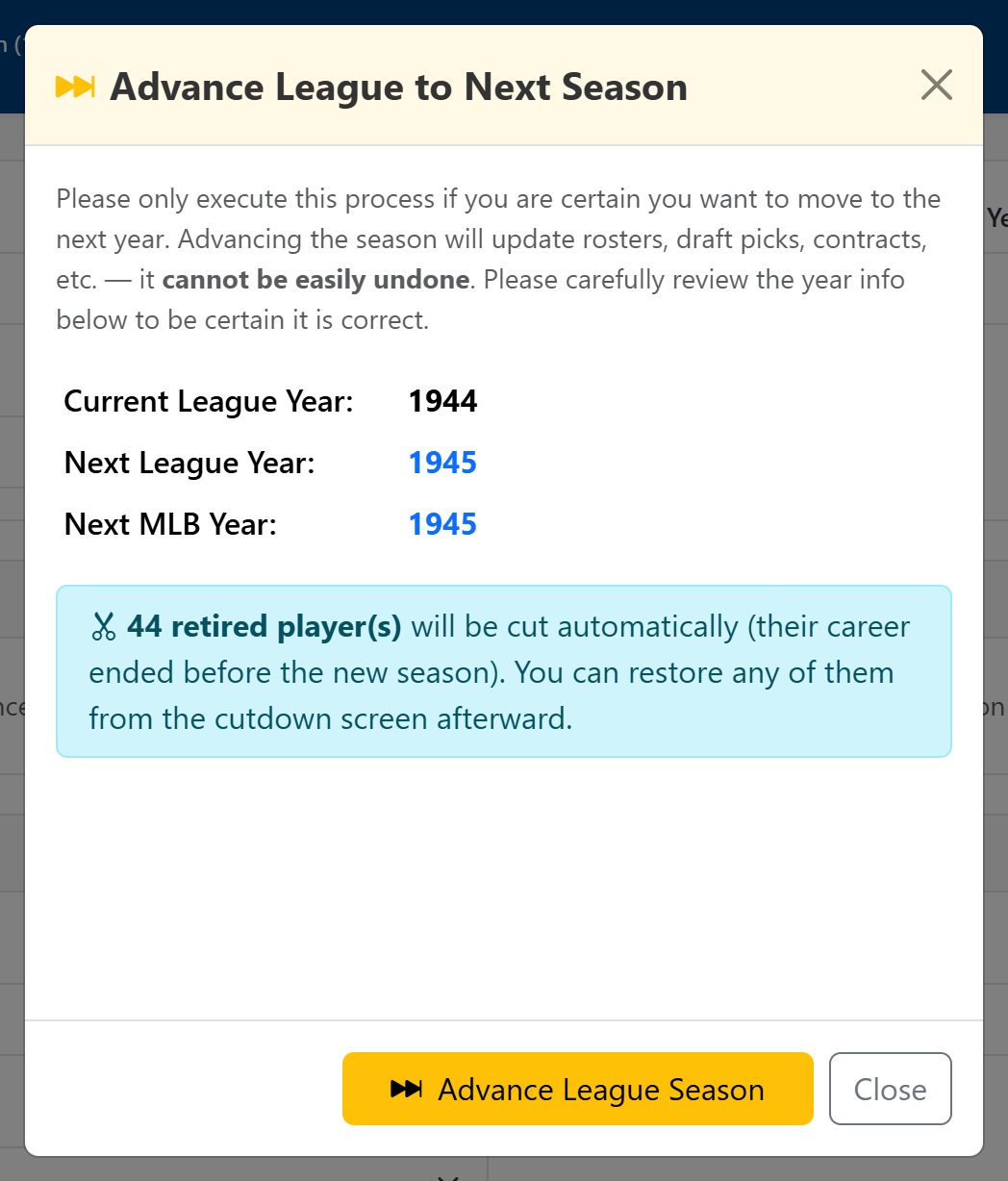
If everything is right, choose Advance League Season. The page reloads when it is done.
What the messages mean:
- Retired players will be cut automatically (retro baseball leagues): players whose careers ended before the new season are cut for you. You can restore any of them from the cutdown screen afterwards.
- A later draft exists than the one configured in league settings: Current / Next Draft is not set to your newest draft. Close the box, do step 2, then try again.
- The new season already has roster records: the league cannot be advanced. This usually means a draft for the new season was run early. Contact the site admin.
5. Owners and league structure
Do this before the draft, so every team has an owner and the draft has the right teams in it.
Find out who is coming back
- Open Archives & Polls from the league dashboard and choose the Polls tab.
- Choose Returning Owners Poll. It asks every team whether its owner is back next season.
Replace an owner
- On League Admin, choose Team Info and pick the team under Select Team.
- To advertise the team, tick Open for a new owner and choose Save Opening. The team is listed on the site-wide League Openings page until you turn this off.
- When you have a new owner, choose Change Ownership. Fill in the new team initials, city, name and owner, then choose Create New Team. The initials can be up to 3 characters and must be ones no team in the league has ever used, including the old team's. City and name can be up to 25 characters each; anything longer is refused with a message.
Use Change Ownership when an owner leaves, not Add Expansion Team. Change Ownership keeps the team's history, roster and draft picks. Add Expansion Team is only for a league that is growing by a brand-new team.
If your league is changing its divisions, use the Leagues & Divisions tile on League Admin.
6. Settings, constitution and calendar
- On League Admin, choose League Info. Review the settings for the new season and choose Save Changes.
- If your rules changed, choose the Constitution tile and update them.
- Choose the Calendar tile to add the season's dates. Under Add an event, fill in the Title, Category and Date, tick Email reminder (24h before) if you want one sent, and choose Save event.
On the calendar page, Create subscribe link gives owners a link that adds the league calendar to their own calendar app.
7. Pre-draft roster cutdown (optional)
Skip this phase if your league does not cut rosters before the draft. The cutdown to the opening-day roster comes later, in phase 11.
- On League Admin, choose League Info.
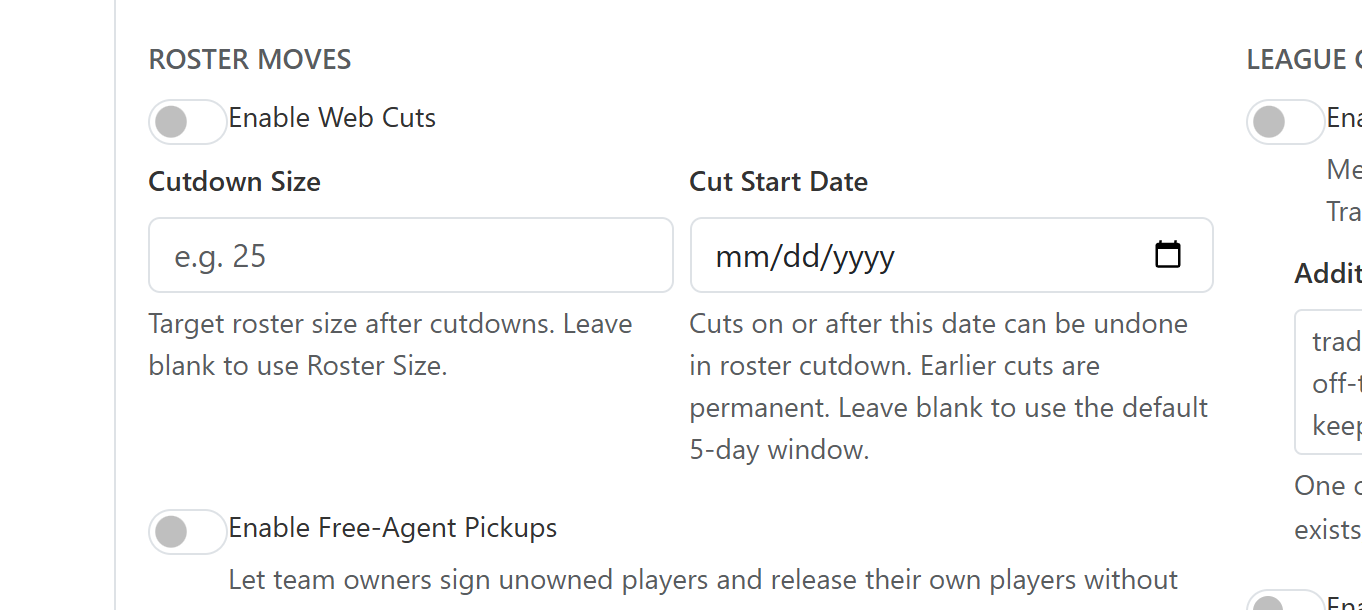
- Under Roster moves, tick Enable Web Cuts.
- Set Cutdown Size to the roster size each team must get down to. Leave it blank to use the league's roster size.
- Set Cut Start Date to the day cuts open. Cuts made on or after this date can be undone on the cutdown screen. Earlier cuts are permanent.
- Choose Save Changes.
Owners then cut their own rosters from their team page. When cutdowns are finished, untick Enable Web Cuts and save.
A few leagues hold a Cutdown Draft at this point, before the annual draft. Each team protects part of its roster, and the players left unprotected go into a shared pool that the other teams draft from. Leagues give it their own name, such as "28 Man Draft". It is a separate draft with its own pages: see Create Additional Draft in the Draft Setup reference.
8. Set up the draft
The draft for the new season already exists. Setting it up means three things: put the teams in order, choose how the clock works, and turn the draft on.
Set the draft order
- On League Admin, choose Draft Order Rules.
- Choose how the order is worked out: the base order, whether Playoff teams draft last, the lottery, and the tiebreakers. Then choose Save Rules.
- Choose Apply Order to Current Draft. A message lists the round 1 order.
If your rules were already saved, advancing the league in phase 4 set the order from them. The Draft Order option on the APBA Stat Loader in phase 1 sets only a plain worst-to-first order. Use Apply Order to Current Draft whenever you change the rules, so the draft follows them.
To set the order by hand instead, use the Draft Slots tile on League Admin and pick a team for each slot. Draft Slots is locked once the draft's first pick is made.
Choose the settings and turn the draft on
On League Admin, choose Draft Setup. If your league has more than one draft, pick the right one under Select Draft.
Under Draft Settings, set how the clock works:
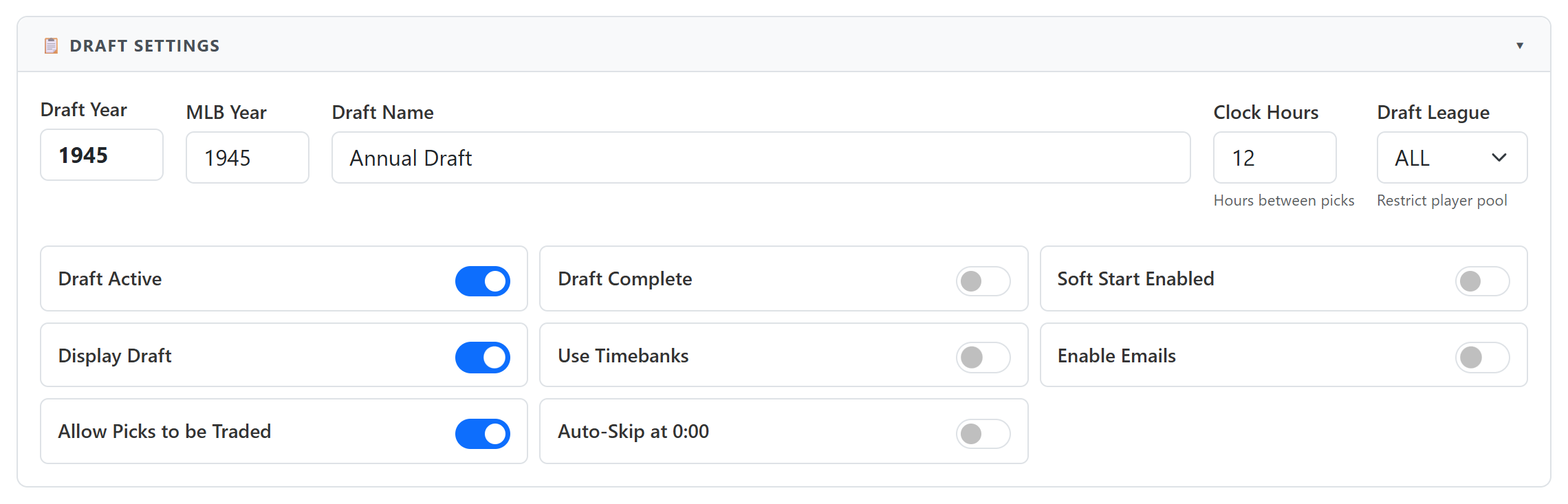
- Hours between picks: how long each team has to pick.
- Use Timebanks: turns on time banks. Each team's bank is set under Team Draft Settings.
- Auto-Skip at 0:00: skips a team automatically when its time runs out.
- Enable Emails: sends the draft's emails to owners.
- Allow Picks to be Traded: lets this draft's picks be included in trades.
Tick Display Draft so owners can see the draft.
When you are ready for the first team to go on the clock, tick Draft Active.
Choose Save Changes.
Set the draft order before you tick Draft Active. A draft that is active with no order shows "Draft order has not been finalized" and nobody can pick.
Under Draft Operations on the same page you can Add Rounds, Delete Rounds, or Reset Draft to roll the draft back to an earlier pick.
Load your league file before the draft
APBA Baseball for Windows leagues.
If you want League Toolkit to keep your league file up to date with the picks, load the pre-draft file before the first pick: on League Admin choose APBA Stat Loader, and under Season Schedule choose the file, Read schedule, then Save schedule. League Toolkit adds every player on the web rosters who is missing from the file, then adds each batch of picks as the draft runs. The line under the button says how many players were added and links the updated file.
9. Run the draft
Owners make their own picks. Your job is to keep the draft moving. Everything you need is on Draft Administration: open the draft from Draft Central, then choose Admin in the toolbar at the bottom.

Under Current Pick Actions you can see who is on the clock and:
- Make Pick for the team on the clock, if its owner has asked you to pick for them.
- Skip Pick, to move on to the next team. The skipped team can make its pick later.
- Email Reminder, to nudge the owner on the clock.
The top of the page shows whether draft emails are on or off. If it says Draft emails are OFF, no pick, on-the-clock or reminder emails go out.
An owner who will be away can give another owner permission to pick for them. This is set under Proxy Access on the same page.
10. After the draft
- On League Admin, choose Draft Setup, tick Draft Complete and choose Save Changes.
APBA Baseball for Windows leagues.
If you loaded your league file before the draft, League Toolkit has added every pick to it. Anyone in the league can download the updated file from the draft pages.
11. Pre-season cutdown
After the draft, teams are usually over the roster limit. This cutdown brings every team down to its opening-day roster. It uses the same settings as phase 7.
On League Admin, choose League Info.
Under Roster moves, tick Enable Web Cuts.
Set Cutdown Size to the opening-day roster size. Leave it blank to use the league's Roster Size.
Set Cut Start Date to the day cuts open, then choose Save Changes.
Tell the owners the deadline. They cut their own rosters from their team page: see Cut down your roster. While cuts are open, each owner over the limit sees this on the league dashboard:

When every team is at the limit, untick Enable Web Cuts and save.
Add the cutdown deadline to the league calendar (phase 6) with an email reminder, so owners get a nudge the day before.
12. Pre-season waiver draft (optional)
A Waiver Wire Draft is a short live draft from the free-agent pool, held after the cutdown so teams can pick up players other teams released.
Leagues with Enable Waiver Wire Draft ticked on League Info. That switch adds the Waiver Wire Draft tile to League Admin.
On League Admin, choose Waiver Wire Draft. If the league has no waiver draft waiting, the Create Waiver Wire Draft page opens.
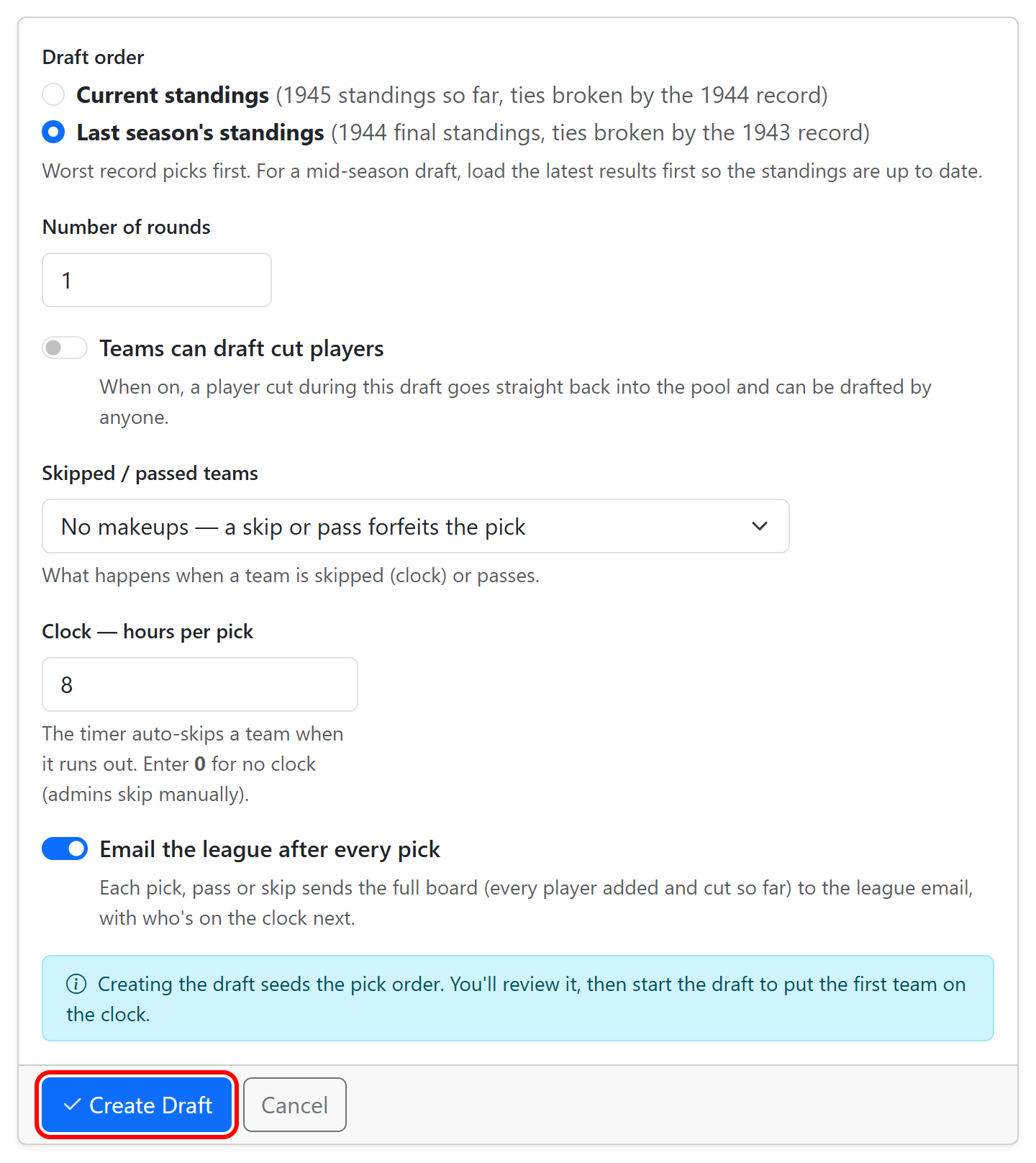
Under Draft order, choose Last season's standings. Before opening day there are no current standings to use. The worst record picks first, and the order is the same every round.
Set Number of rounds.
Choose whether Teams can draft cut players. When it is on, a player cut during this draft goes back into the pool and anyone can draft him.
Under Skipped / passed teams, choose what happens when a team is skipped or passes.
Set Clock — hours per pick. Enter 0 for no clock; you then skip teams yourself.
Tick Email the league after every pick if you want each pick sent to the league email.
Choose Create Draft. The board opens with the order filled in.
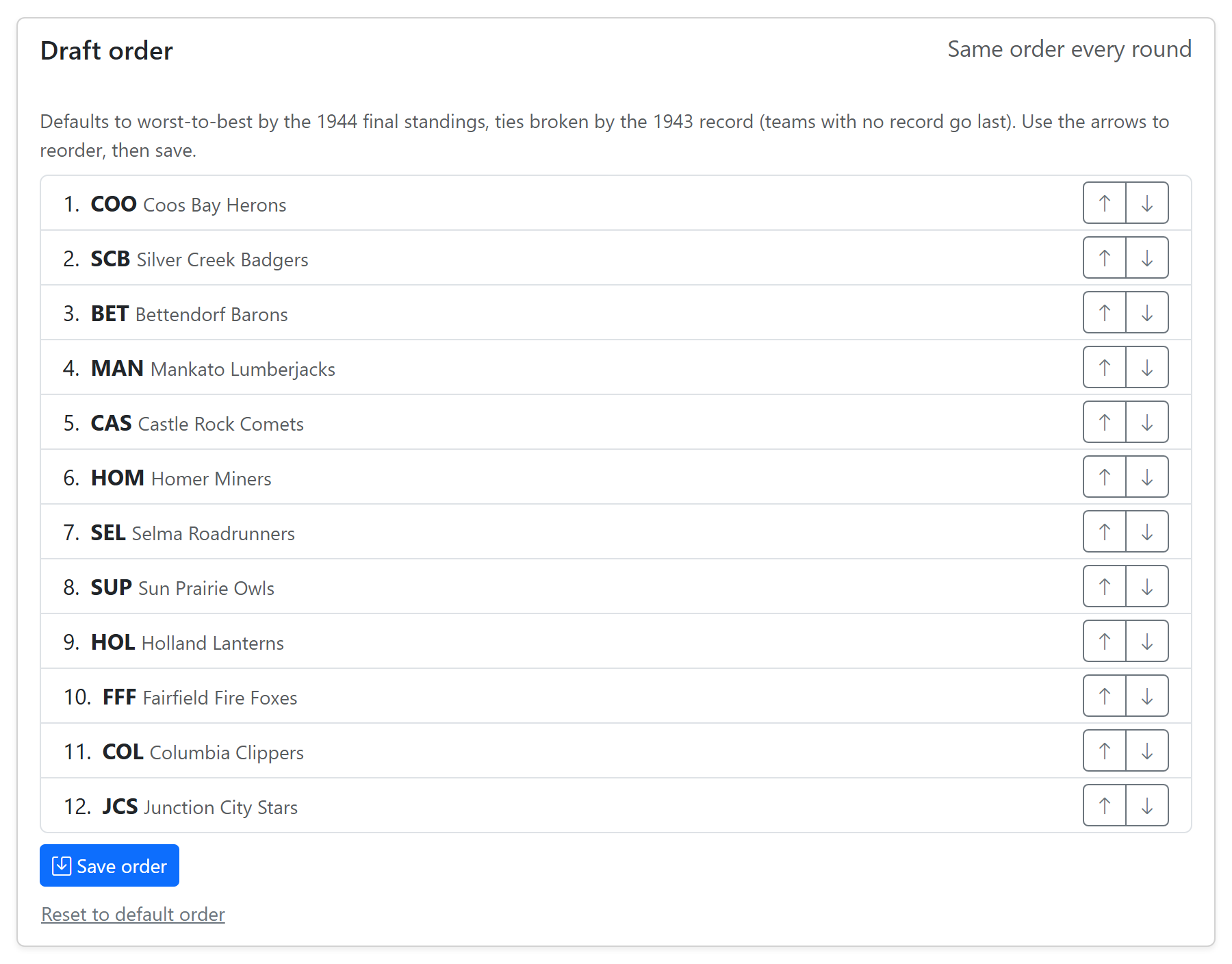
Check the order under Draft order. To change it, move teams up or down and choose Save order.
When you are ready for the first team to go on the clock, choose Start draft.

Owners pick from the board. A team whose roster is already at the league limit has to cut a player with each pick. While the draft runs you can Skip (admin) the team on the clock, and End draft when it is over.
During the season
Once rosters are set, the season runs on the files you load. Each game's loader has its own tutorial:
- APBA Baseball for Windows: Load results: APBA Baseball. It covers, in order: the Season Schedule, the Season Preview, Play Ball previews, the Missing Series check, Results & Recap after each set of games, reviewing and publishing recaps, and letting a File Uploader load the files for you.
- APBA GO, Diamond Mind and Action PC: Load results: APBA GO, Diamond Mind and Action PC.
That is the whole cycle. When this season ends, start again at phase 1.