Before a new season, your league may ask every team to cut its roster down to a set size. While cutdowns are open, you make your cuts yourself on your team's Roster Cutdown page. Nothing is cut until you choose Submit.
When cutdowns are open
Your commissioner opens and closes cutdowns. While they are open, your league dashboard shows Roster cutdowns are open in the Needs your attention list. It tells you how many active players you have and how many to cut. Choose Cut Roster to go to your cutdown page.

You can also get there from your team page. Choose My Team, wait for the roster to finish loading, then choose the red Manage Cutdowns button above the roster.

When cutdowns are closed, neither the list item nor the button is shown.
Cut players
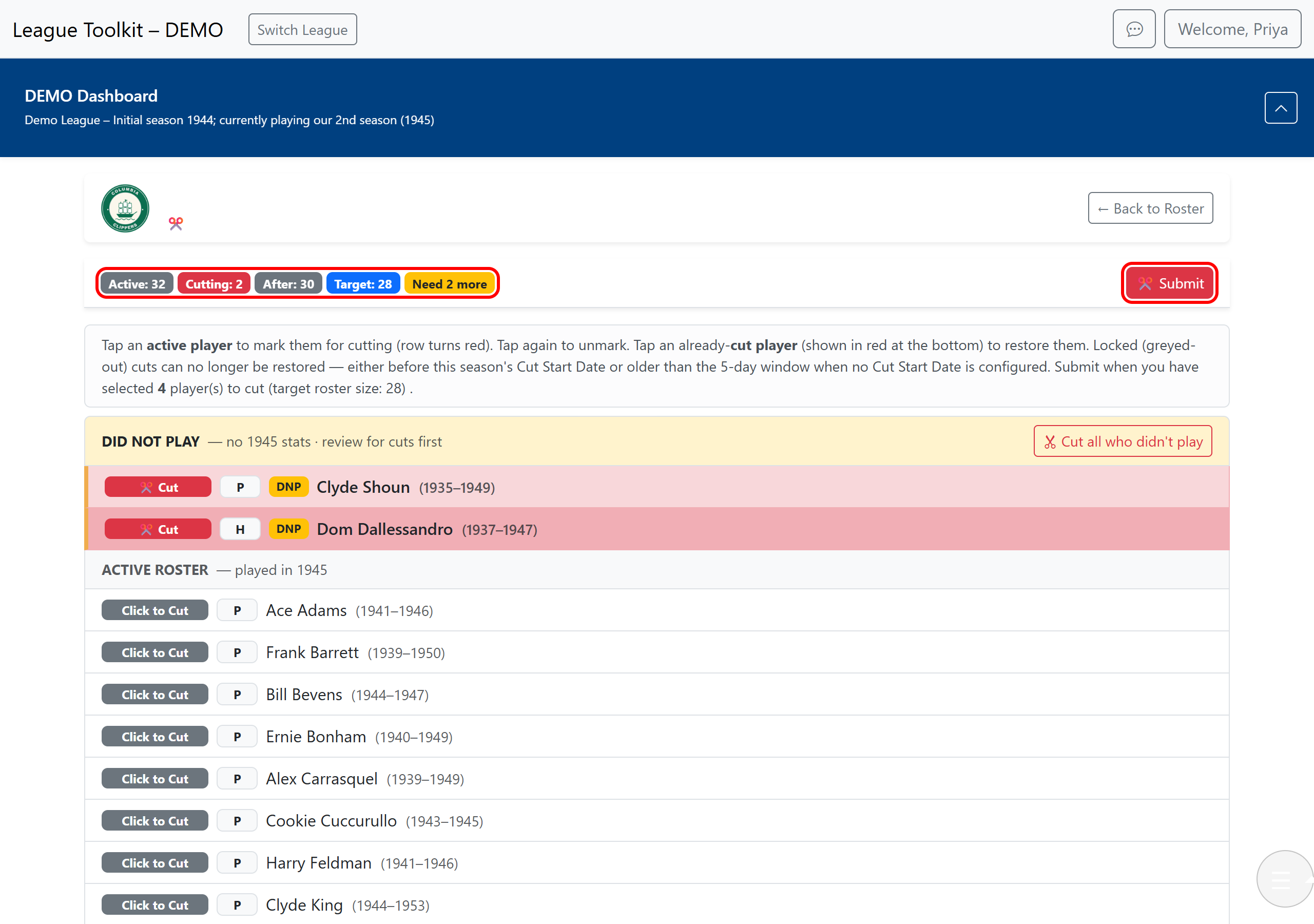
On the cutdown page, read the badges at the top:
- Active: how many active players you have now.
- Cutting: how many players you have marked to cut.
- After: how many active players you will have after you submit.
- Target: the roster size the league wants.
- The last badge tells you how far you still have to go, for example Need 2 more.
Choose Click to Cut next to a player. His row turns red and the button changes to Cut. Do this for each player you want to release. The badges count along with you.
Changed your mind before submitting? Choose the player's row again. It goes back to Click to Cut.
When After matches Target, the last badge reads ✓ On target!.
Choose Submit. There is one at the top of the page and one at the bottom.
A box asks you to confirm and shows how many players you are cutting and what your roster will be. Choose OK.
The page reloads with the message Done! and the number of players cut. Your cut players now appear in red at the bottom of the list.
Choose a player's name to open his player card in a new tab. This does not mark him.
If you mark too many players, the last badge turns red and says how many players you will be below the target, for example 2 below target, with a warning under the badges. The page still lets you submit, so check the numbers first.
The Did Not Play shortcut
Players who have no stats for the season are listed first, under Did Not Play. Each has a yellow DNP label. They are usually the first players to cut.
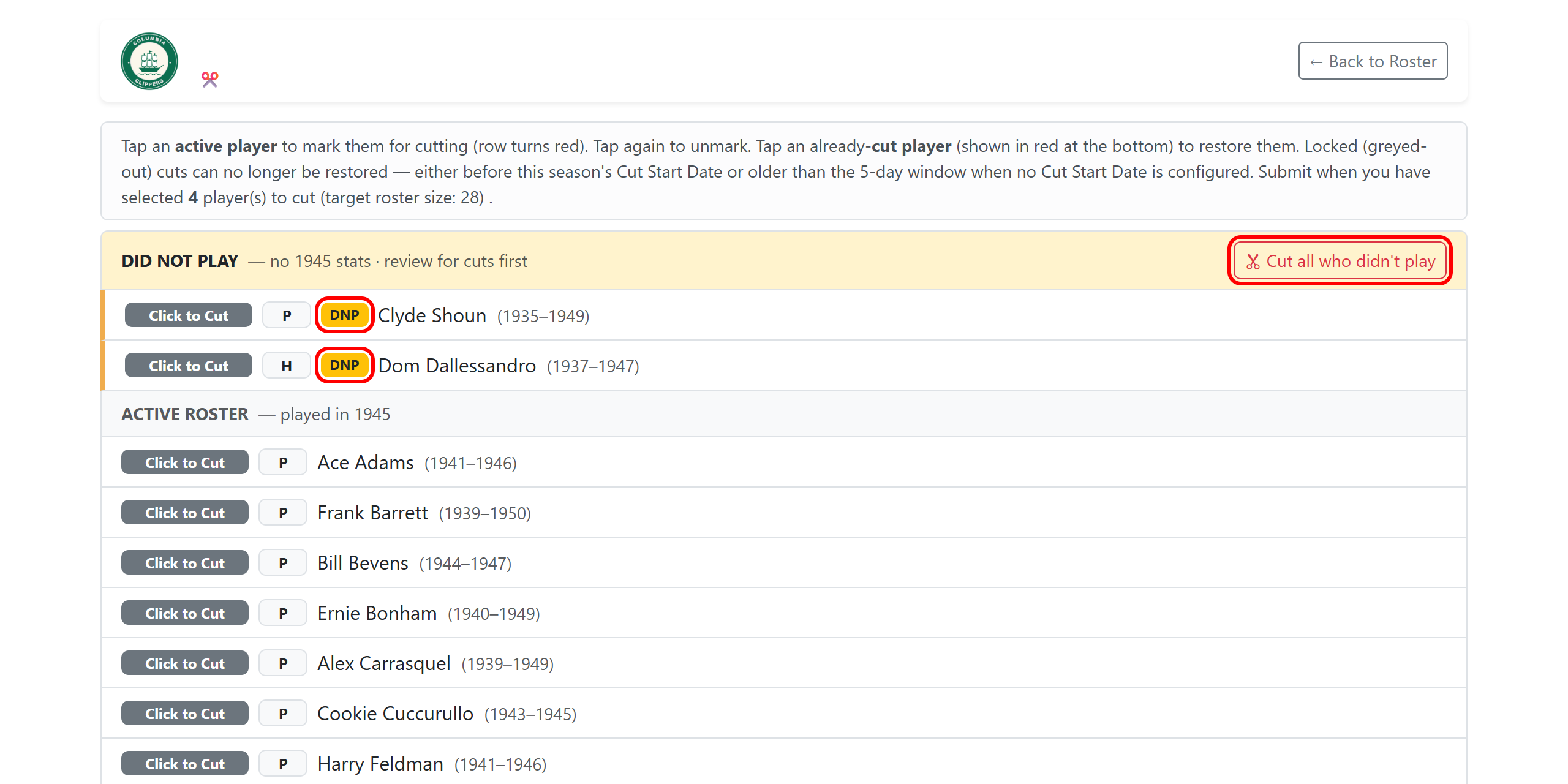
To mark all of them at once, choose Cut all who didn't play and confirm. This only marks them: you can still unmark any player you want to keep, for example an injured star, before you choose Submit.
Below them, under Active Roster, are the players who did play.
Undo a cut
Open the cutdown page again.
At the bottom of the list, find the player in red with Click to Uncut. The date he was cut is on the right.

Choose his row. It turns green and the button changes to ↩ Restore. A Restoring badge appears at the top.
Choose Submit and confirm. The message says how many players were restored, and he is back on your active roster.
How long you can undo a cut depends on your league:
- If your commissioner has set a Cut Start Date, any cut made on or after that date can be undone for as long as cutdowns are open. Cuts made before that date cannot be undone.
- If no Cut Start Date is set, you can undo a cut for 5 days after you made it.
A cut that can no longer be undone is shown in grey with Locked, and choosing it does nothing. Ask your commissioner if you need that player back. You can only undo cuts while cutdowns are open.
Other things you may see
- Retired Players: in some leagues that replay past seasons, players whose careers have already ended are listed first, with a Cut all retired button that works like Cut all who didn't play.
- Move to IA: in leagues with an inactive list, this button moves a player to the inactive list instead of cutting him. After you confirm, he moves straight away, without Submit, and no longer counts against the target. To bring him back, choose his row (Click to Activate) and confirm. The list has a limit, shown in an Inactive badge.
- MLB Target and Prospects: in leagues where prospects count toward the roster limit, the target badge reads MLB Target. Your active prospects are taken off the league's limit, so your target is lower when you have more prospects.
- To go back to your team, choose ← Back to Roster.