Every APBA file you load goes through one page: the APBA Stat Loader. It has one card for each job, in the order a season uses them. This tutorial goes through them card by card.
To open it, go to League Admin and choose the APBA Stat Loader tile.
| Card | When | What you upload |
|---|---|---|
| Season Schedule | Once, before opening day | The start-of-season file (Initial Disk or the first Play Ball file) |
| Season Preview | Once, before opening day | The same file |
| Play Ball | At the start of each set of series | The Play Ball file |
| Missing Series | Any time during a set of series | The latest commissioner file |
| Results & Recap | After each set of series | The results file |
| End of Season Results | Once, after the playoffs | The final files |
All of these cards take the league's commissioner files (C-….LPF). A team's own results file (F-….LPF) only goes in one place: Missing Boxes, further down.
1. Season Schedule
Load the schedule first. Recaps, previews and the missing-series report are all built from it.
On the Season Schedule card, choose Choose File and pick the start-of-season file (the Initial Disk or the first Play Ball file).
Choose Read schedule.

Read the summary under the button: the number of games, game days and series, and the date the season starts. Nothing is saved yet.
If the league already has a schedule for that season, the summary says so. Saving updates it, and games already played are kept.
Check Season shows the right year. Then choose Save schedule.
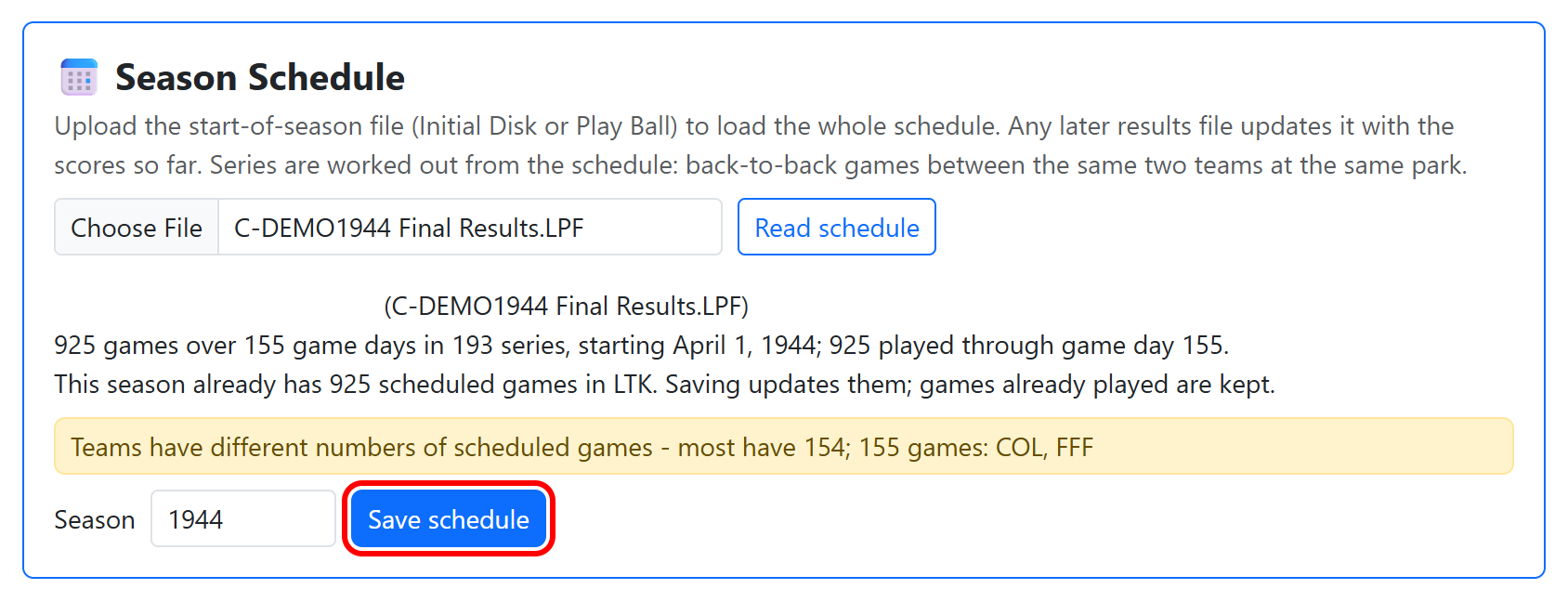
A green line says how many games and series were saved. Choose View the schedule to see it.
You can load any later results file here too. It updates the schedule with the scores so far.
The file you save here is also the league file for the draft. League Toolkit adds every player on the web rosters who is missing from it, and keeps adding picks as a draft runs. The green line shows how many players were added, with a link to the updated file. Anyone in the league can also download it from the draft pages, and you can refresh it with Update now under League File (C-file) on Draft Administration.
When a team in the file does not match
League Toolkit matches each team in the file to a league team by its initials. If some do not match, a table appears under the summary, listing only those teams: Team in the file, Games and League team.
- For each row, pick the league team under League team. The list has Current teams and Former teams. Pick Skip to leave a team out.
- Choose Save schedule.
Your picks are remembered. Next time, those rows come back already filled in, with a saved label, and every other card on this page uses the same matches.
A playoff round's file is refused here. Load a playoff file under Results & Recap instead, where you pick its round.
2. Season Preview
The Season Preview projects every team's record from the league's rosters and the schedule, and picks the division winners and the champion.
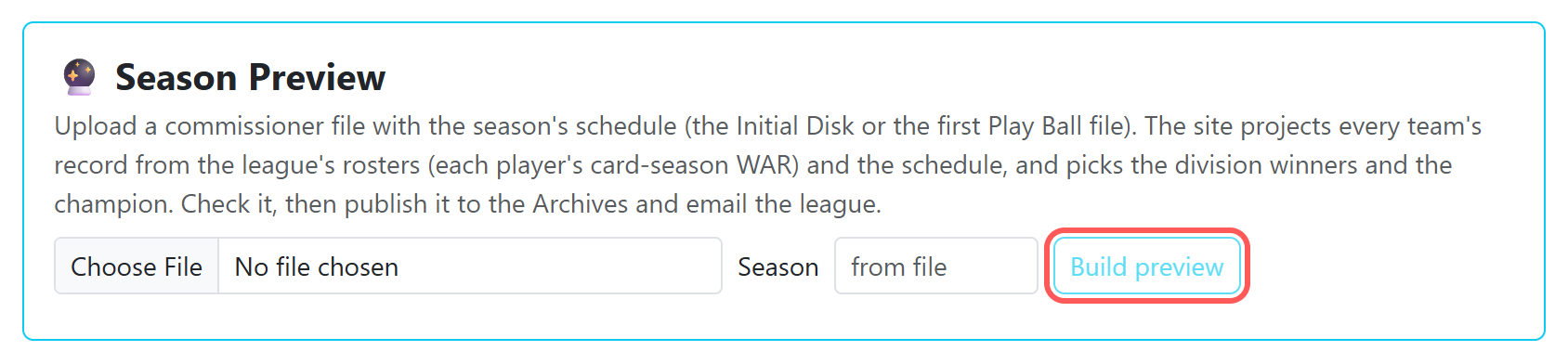
On the Season Preview card, choose Choose File and pick the file with the season's schedule (the Initial Disk or the first Play Ball file).
Leave Season blank to use the year in the file, or type the season.
Choose Build preview.
A box shows the preview's title and the top 3 teams. Choose Review & publish to check it and send it. See Review and publish below.
Leagues with the AI add-on also get an opening and a paragraph on every team, written by Claude. Without it, the preview has the projected records and picks only.
Building it again replaces the one you built before, even one already published.
3. Play Ball
Load the Play Ball file at the start of each set of series. League Toolkit builds a preview of the next set: home teams first, then every series with both teams' form.
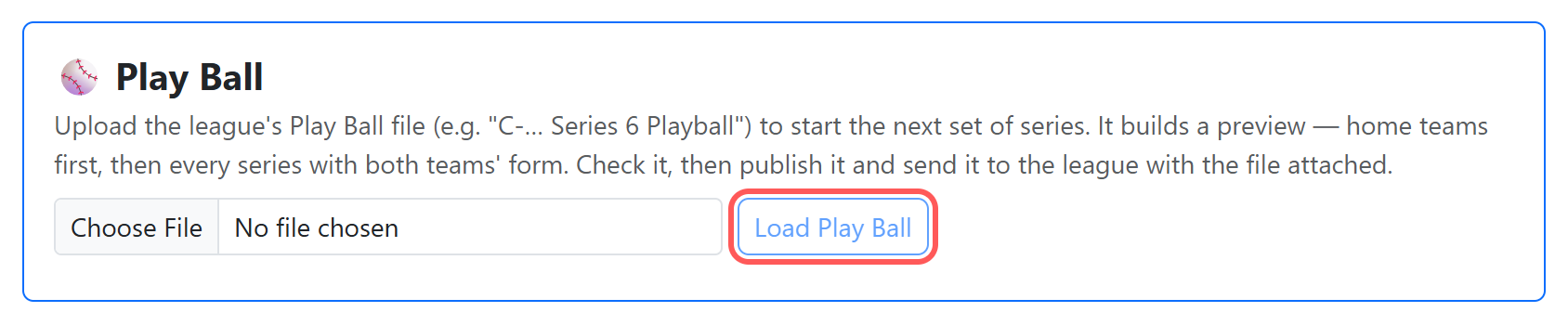
On the Play Ball card, choose Choose File and pick the Play Ball file (for example "C-… Series 6 Playball").
Choose Load Play Ball.
A box shows the preview's title, its game days, the number of series and the home teams. Choose Review & publish to open it. See Review and publish below.
Good to know:
- The preview is for the first set of series that still has games to play. If the file name says a different series number, a warning tells you which one the preview is for.
- If every game in the file has been played, nothing is built.
- A playoff round's file: the box says which round it was read as. If that is wrong, pick the right round in the list and choose Rebuild as this round.
The look-ahead written by Claude needs the AI add-on. Without it, the preview still has every series.
4. Missing Series
Use this during a set of series to see which series are still to be played. Nothing is saved.
- On the Missing Series card, choose Choose File and pick the latest commissioner file.
- Choose Check file.
- The report shows the week, how many series are still to play, an email subject and the text, with the results so far.
- Choose Copy to Clipboard to paste it into your own email, or Email League to send it to the league's mailing list. Email League asks you to confirm first.

Email League only works when the league has a mailing list address. Set it on League Info. Without one, the button is greyed out and the card says so.
5. Results & Recap
Load the results file after each set of series. One upload does up to three things:
- Saves the box scores and updates the schedule with the scores.
- Opens a draft recap, organized by series. Nobody else sees it until you publish it.
- Updates the season stats and standings, if the tick box is ticked (it is, by default).
Trophies, draft order and awards are not loaded here. They load at the end of the season.
On the Results & Recap card, choose Choose File and pick the results file (for example "C-… Series 5 Results").
Choose Read results.
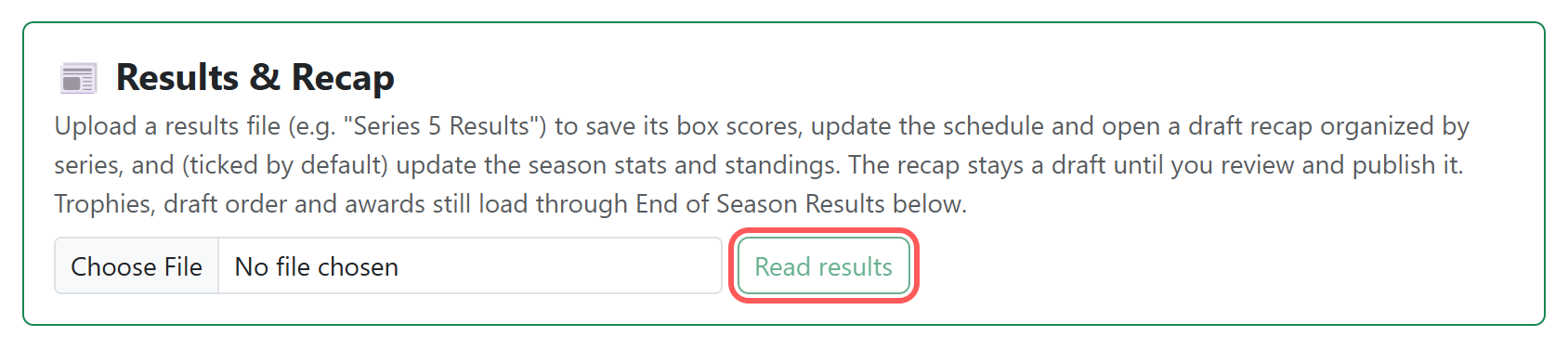
Read the summary: the number of games, their dates and game days, how many are already loaded, and the series in the file. Read any yellow or blue notes under it (see below).
Check the boxes under the notes:
- Recap: the word and number the recap is titled with (Series, Week, Block or Set). It is filled in from the file name, or the next number after your last recap.
- Season: the season the games belong to.
- Update the season stats from this file: leave it ticked to update standings, player batting and pitching, fielding and team stats.
- Write the series stories and Around the League with Claude: needs the AI add-on. Without it, this box is greyed out.
Choose Load results.
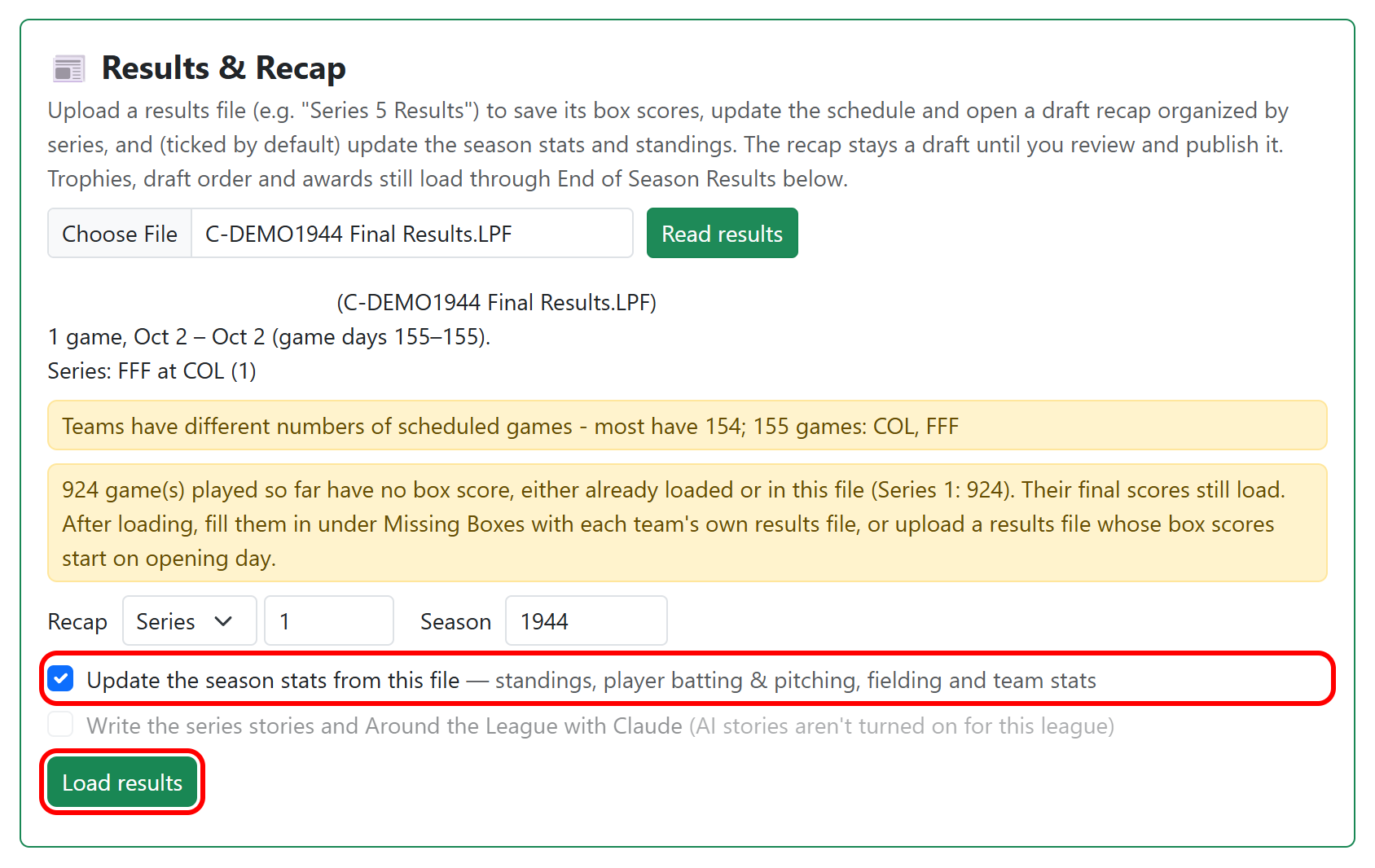
Progress lines appear under the button. When it says Done., a box shows each recap the file touched, with Review & publish. A line also says what happened to the season stats.
The notes you may see after Read results:
- Teams not matched to the league yet: match them on the Season Schedule card first, then come back.
- Older than the season stats already loaded: you uploaded an earlier file again. Its stats are not loaded, so the stats are not rolled back. The schedule, box scores and recap still load.
- Games played so far have no box score: their final scores still load. Fill in the box scores under Missing Boxes (below).
- This file also fills in box scores from earlier series: each one goes to its own series' recap. A recap you already published is marked as needing a refresh.
Upload a team's own results file (F-….LPF) here and it is refused, with a message to use Missing Boxes.
A season kept by game-by-game box score entry cannot take stats from a file. The stats step is skipped and says why. The box scores and recap still load.
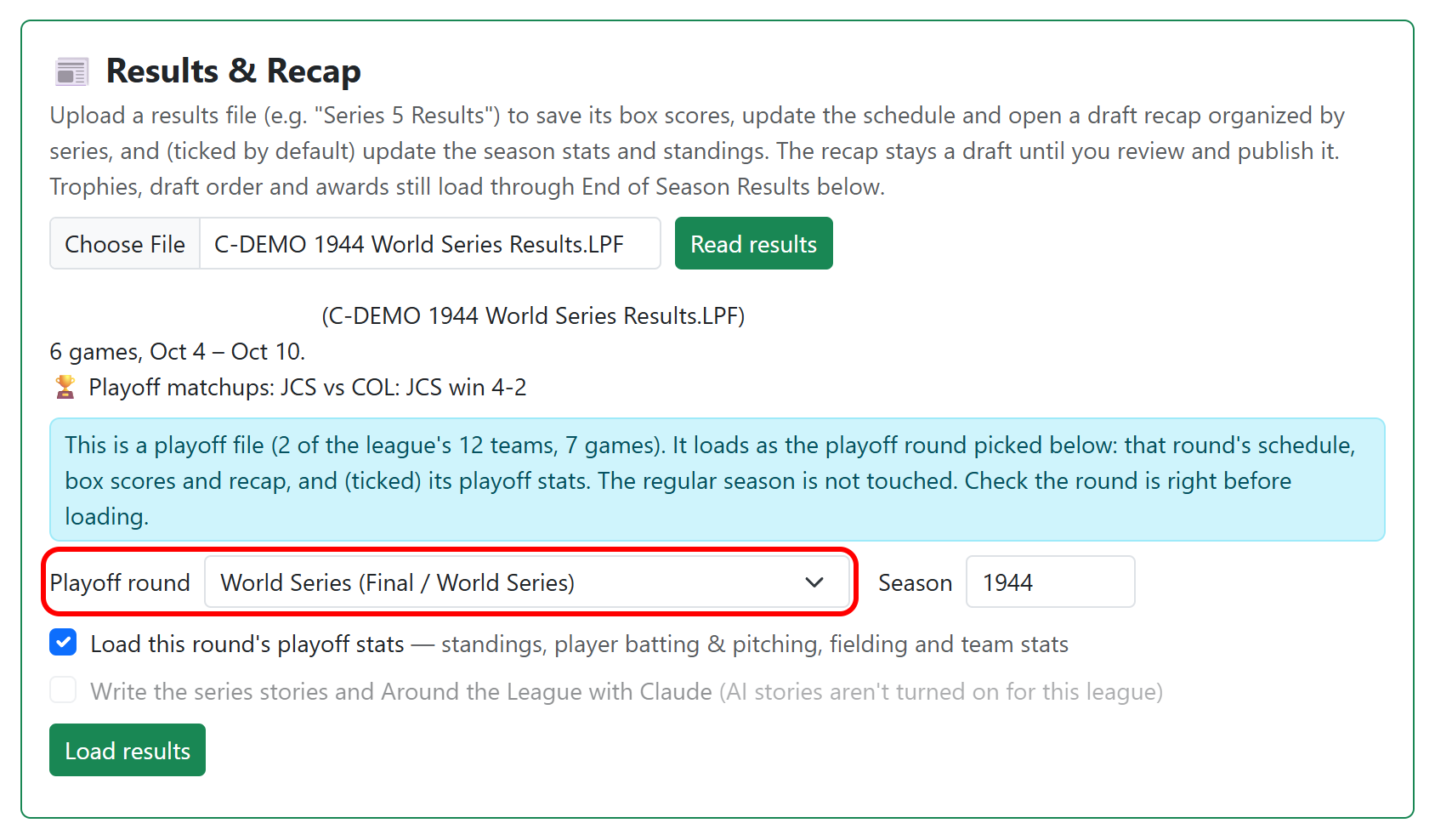
A playoff round's file
A file with only the teams still playing is read as a playoff round. A blue note explains it, and Recap is replaced by Playoff round.
- Check Playoff round shows the right round. Change it if it does not.
- Load this round's playoff stats replaces the stats tick box. Leave it ticked to load the round's stats.
- Choose Load results. The regular season is not touched.
Missing Boxes
This card only shows up when games played this season have a final score but no box score. It lists them by series, and playoff games by round.
- Get the team's own results file (F-….LPF) from either team in the series. For a playoff round, use that team's file for the round.
- On the series' row, choose Upload team file and pick the file.
- A green box says how many box scores were added, with a link to each recap that changed.
Only games still missing a box score are taken from the file.
6. Review and publish
Every recap and preview starts as a draft. Open one from the box on the loader, or from the Recaps tile on League Admin, which lists every recap and preview with its status (Draft, Published, Emailed).
The review page has three parts:
- Stories (or Previews). With the AI add-on, choose Write missing stories to have Claude write them, or Rewrite all (keeps your edits). Without it, you can write a story yourself: choose Edit on a game.
- Title & Around the League (on a preview, Title & Look-Ahead). Change the title or the opening text, then choose Save.
- Publish:
- Leave the email box ticked to email the league. It names the league's group email address (on a recap: Email the scoreboard, headlines and a link to that address). On a recap you can also tick Attach the results file; on a preview, Attach the playfile.
- Pick the deadline the email shows, or No deadline in this email. It starts on your league's default from League Info, and only changes this one email.
- Choose Publish to Archives, then OK.
After publishing, the recap or preview is in the league's Archives. You can still change it: choose Re-publish to update it, or Unpublish to take it back to a draft.
On the Recaps page, Publish all … drafts publishes a whole season's drafts at once, to the Archives only. No emails are sent. It is handy for loading an old season.
If a recap says only some of the week's games are uploaded, a bye week is fine. Publish anyway.
7. End of the season
After the last playoff round, load the final files under End of Season Results at the bottom of the same page. That loads the full stats with trophies, draft order and awards. The steps are in phase 1 of Start a new season, end to end.
Let someone else load the files: the File Uploader
You can hand the weekly loading to one owner, the File Uploader.
- On League Admin, choose League Info.
- Under Personnel & Roster, pick the owner in File Uploader. It can be any owner of a team in this league.
- Choose Save Changes.
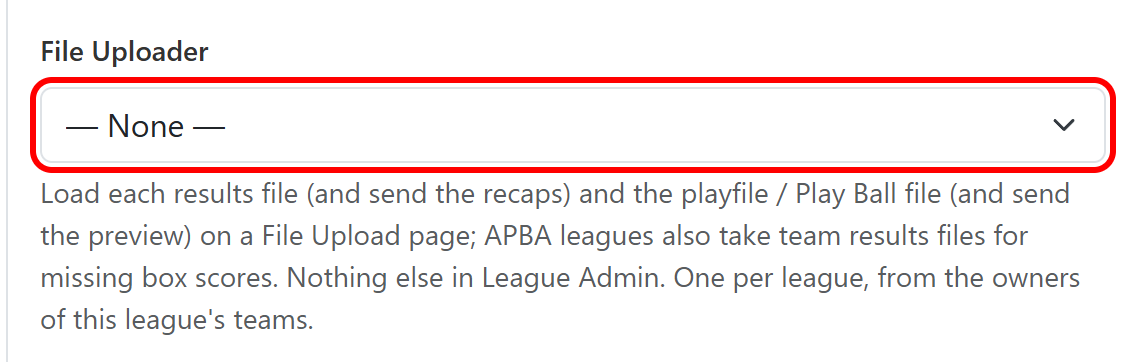
That owner then has a File Upload tile on the league's dashboard. It opens a page with the Play Ball, Missing Series, Missing Boxes and Results & Recap cards, and nothing else from League Admin. They cannot load the schedule, the season preview or the end-of-season results.
The File Uploader does not get the review page. After loading a file, they choose Check & send, which shows the recap or preview as the league will see it:
- On a recap, a Before you send list names anything missing: a series with no box scores, a series not in the file, or a story that could not be written.
- They choose Send to league (or Publish to the Archives if the league has no group email address), then OK.
What owners can send themselves: Email Results
Owners in APBA Baseball leagues can email their own series result to the league. On their team page they choose Email Results, upload their team's results file (F-….LPF), check the email and send it. It goes to the league email address with the file attached.
This changes nothing on the site. You still load the league's results file as above.