Each Hall of Fame vote is one ballot for one year. You choose up to a set number of candidates, open voting, and every team votes Yes or No on each player. When you choose Close & Induct, every player who got enough Yes votes goes into your league's Hall of Fame.
Everything here starts on League Admin. Choose the Hall of Fame tile to open the Hall of Fame Admin page.
1. The League Info switch
League Info has a Hall of Fame Voting group with one switch, Enable HOF Voting.

Enable HOF Voting lets owners open the ballot page and vote. You do not need to set it by hand: Open Voting turns it on, and Close & Induct turns it off again. While it is off, the Hall of Fame Admin page shows a HOF Voting Disabled badge, and the league's Hall of Fame page has no Current Ballot button.
2. Check the HOF Settings
The HOF Settings card sets who can be a candidate and how many votes a player needs. Change what you need, then choose Save Settings. The page reloads with your new values.
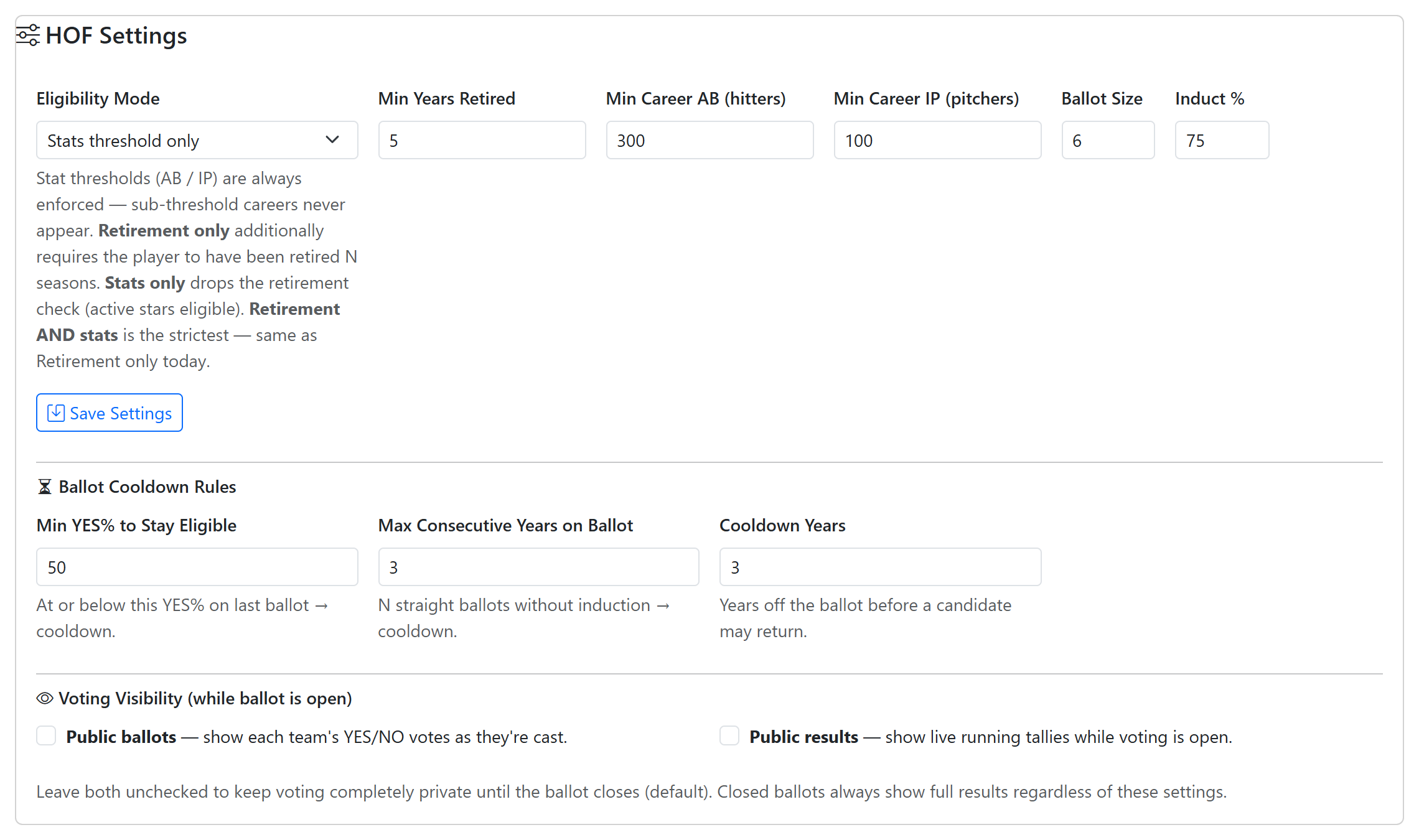
The demo league in these pictures uses low numbers. A new league starts with the defaults shown in the table.
| Setting | What it means | Default |
|---|---|---|
| Eligibility Mode | Which rules a player must pass to be a candidate. See below. | Retirement only |
| Min Years Retired | How many seasons must have passed since the player's last season in your league. | 5 |
| Min Career AB (hitters) | Career at-bats in your league a hitter needs. | 3000 |
| Min Career IP (pitchers) | Career innings in your league a pitcher needs. | 1500 |
| Ballot Size | The most candidates one ballot can have. | 6 |
| Induct % | The share of teams that must vote Yes for a player to be inducted. | 75 |
Eligibility Mode has three choices:
- Retirement only: the player must reach the at-bat or innings minimum and have been retired for Min Years Retired seasons.
- Stats threshold only: the player only needs the at-bat or innings minimum. Players who are still active can be candidates.
- Retirement AND stats: works exactly the same as Retirement only.
In every mode, a player needs either the at-bat minimum or the innings minimum, not both. Careers are counted from your league's own stats, and years retired are counted up to your league's current season.
Ballot Cooldown Rules
These rules rest a player who has not done well on recent ballots. A player in cooldown does not appear in the candidate list.
- Min YES% to Stay Eligible (default 50): a player whose Yes share on his last ballot was at or below this goes into cooldown.
- Max Consecutive Years on Ballot (default 3): a player who has been on this many ballots in a row without being inducted goes into cooldown.
- Cooldown Years (default 3): how many years the player then sits out.
For example, with the defaults: a player gets 40% on the 1945 ballot. He cannot be picked for 1946, 1947 or 1948, and can be picked again for 1949. The Yes share here is counted the same way as for induction: Yes votes out of all of your league's teams.
Voting Visibility (while ballot is open)
- Public ballots: owners can see how each team voted on each player while voting is open.
- Public results: owners can see the running Yes and No counts while voting is open.
Both are unticked by default. Once a ballot is closed, its full results are shown to everyone.
3. Create the ballot
If the year you are looking at has no ballot yet, the page shows a Create box for it.
Check the Ballot Year.
Choose Create Ballot.

The message says the ballot was created. It starts as a Draft, which owners cannot see yet.
To start a ballot for another year, use Start a New Ballot Year near the bottom of the page: type the Year and choose Create. Use the Year: list at the top of the page to switch between ballots.
4. Choose the candidates
You can only add or remove candidates while the ballot is a Draft.
- In the Ballot Candidates card, choose Browse All-Time Leaders.
- The HOF Candidate Browser opens. It lists every player who passes your eligibility and cooldown rules, with Pos, Last Yr, Yrs Retired, Accolades (career rank badges and awards) and career totals. Players already in your Hall of Fame are left out.
- Use Search to find a name, or Sort by to reorder the list.
- Choose the rows of the players you want. The count at the top right shows how many you have picked and how many open slots the ballot has.
- Choose Add Selected to Ballot.
The message says how many candidates were added. If you pick more players than the ballot has room for, only the first ones are added, up to Ballot Size.
If the browser says "No eligible players found for the current eligibility settings", no player passes your rules yet. Lower the numbers in HOF Settings, save, and browse again.
To take a candidate off a draft ballot, choose the bin button on his row, then OK.
5. Open voting
When the ballot looks right, choose Open Voting in the ballot bar. The box that asks you to confirm says whether a link will be emailed to the league or, if your league has no group email, that you need to share the ballot link yourself. Choose OK. A ballot needs at least one candidate before it can open.
The badge changes to Open, with the date it opened, and Enable HOF Voting is switched on. If your league has a league email address, every owner is emailed a link to the ballot. Owners also see "Hall of Fame voting is open" on the league dashboard, and a banner on the Hall of Fame page.

Once the ballot is open, the candidate list is locked.
6. Watch the turnout
While the ballot is open, Voter Turnout shows how voting is going.
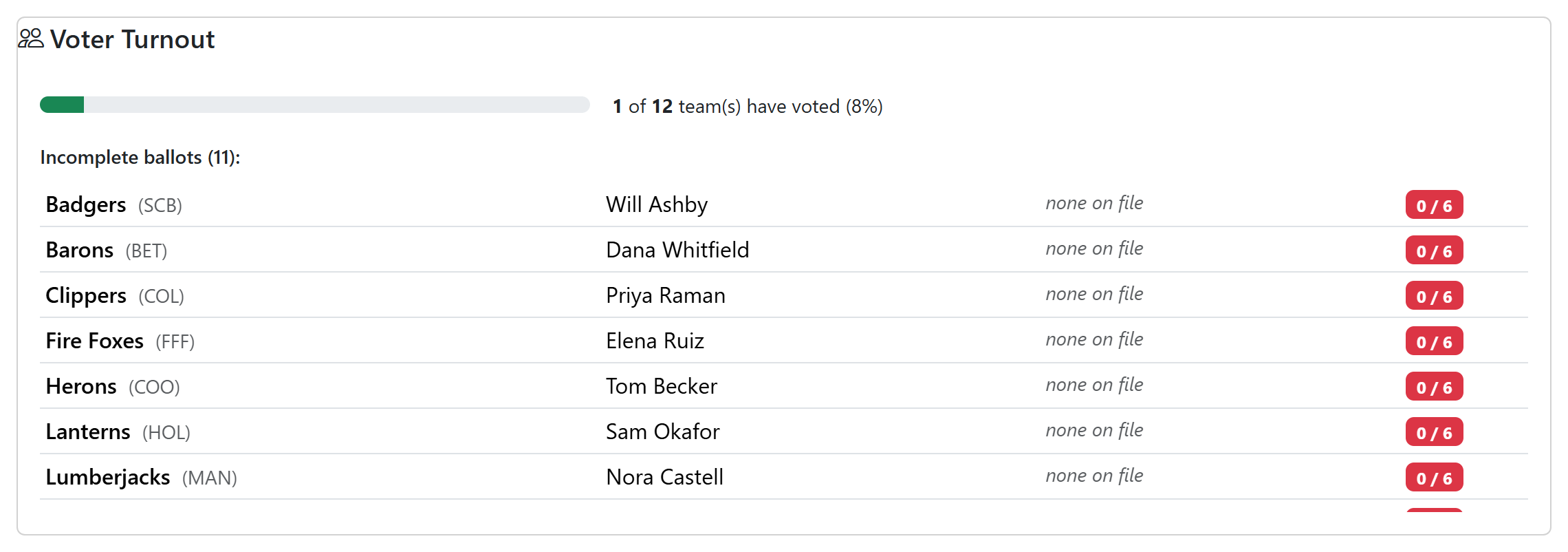
- "1 of 12 team(s) have voted" counts every team that has answered at least one candidate.
- Incomplete ballots lists every team that has not answered every candidate yet, with its progress (for example 0 / 6).
- Email Non-Voters emails a reminder to each team on that list. It only appears when at least one of those owners has an email address on file.
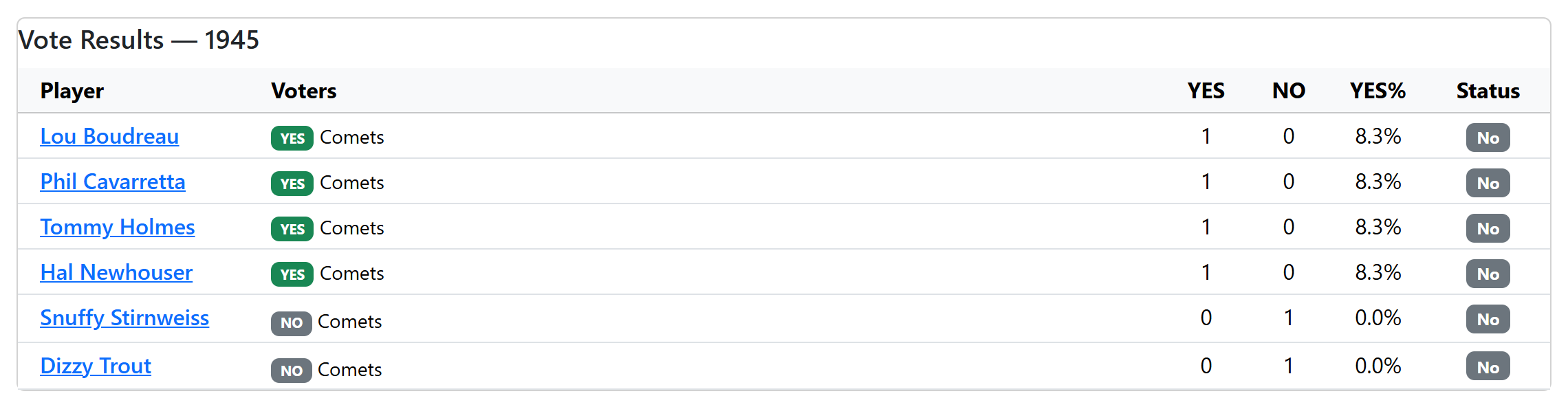
Vote Results shows each candidate's Yes and No votes, which teams cast them, the YES%, and a Status of Qualifies or No.
7. Close & Induct
When voting is done, choose Close & Induct. The box that asks you to confirm also says whether the results will be emailed. Choose OK. This does four things at once:
- Closes the ballot. Owners can no longer vote.
- Inducts every candidate whose Yes share reached Induct %.
- Turns Enable HOF Voting off, unless another ballot is still open.
- Emails the results to the league email address, if your league has one.
The message says how many players were inducted, or that no candidate reached the threshold. Owners can then see the full result for each candidate under Voting History on the Hall of Fame page. While a ballot is still open, Voting History shows "Voting in progress" for it and no result.
What 75% means in teams
The Yes share is counted out of all of your league's active teams, not just the teams that voted. A team that never votes counts the same as a No.
| Teams in the league | Yes votes needed at 75% |
|---|---|
| 10 | 8 |
| 12 | 9 |
| 16 | 12 |
| 20 | 15 |
The ballot page tells owners the number for your league, for example "Induction requires 75% YES votes (9 of 12 minimum)".
Plaques and bios
Each candidate row in Ballot Candidates has a plaque, a Photo URL and a Bio. You can change them at any time, even while voting is open.
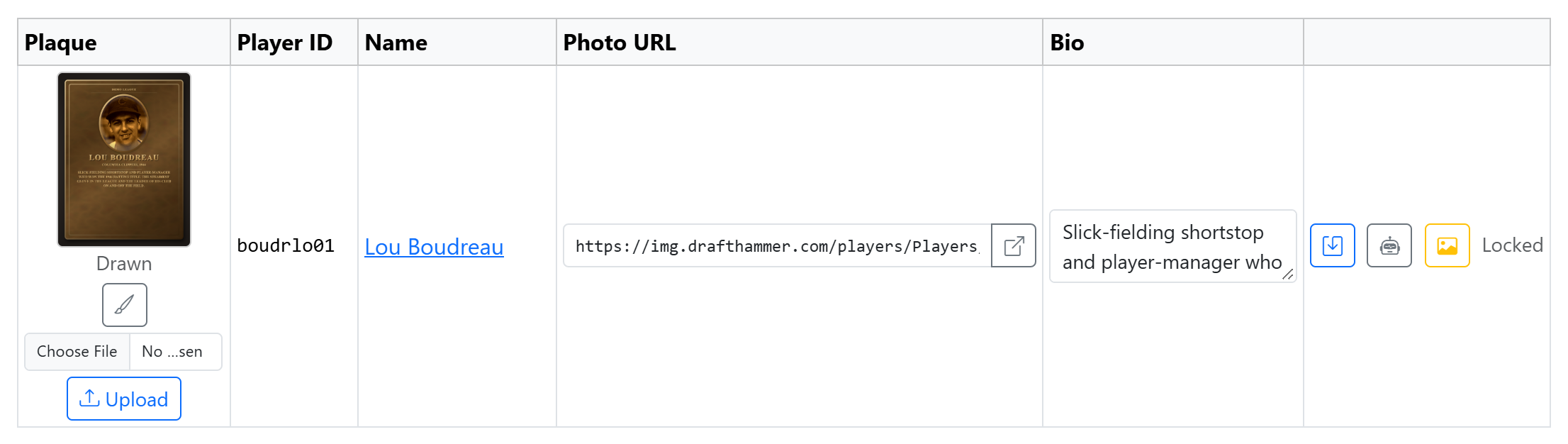
- The bio is shown to owners on the ballot, next to the player's photo.
- The plaque is not shown on the ballot. It is kept for the Hall of Fame: an inducted player's plaque appears on the league's Hall of Fame page and on his player card.
- Both are kept with the player. If he is nominated again in a later year, his bio and plaque come back with him.
The word under each plaque says where it came from: Drawn, Uploaded or AI image.
Every league: the drawn plaque
League Toolkit draws a bronze plaque for each candidate when he is added to the ballot. It uses the photo, his name, his team and the bio.
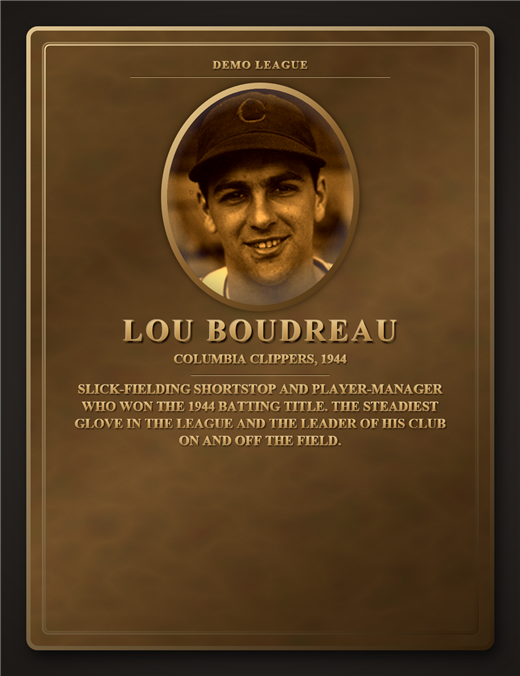
- To add or change a bio, type it in Bio on the player's row and choose the save button (the first button at the end of the row). A message says the plaque was redrawn.
- To change the picture on the plaque, change Photo URL and choose the save button. The arrow button next to the box opens the picture so you can check it.
- To redraw a plaque without changing anything, choose the brush button under it. Drawing takes a few seconds.
If any candidate has no plaque, a Draw plaques for nominees without one button appears above the table. It draws them all in one go.
Every league: use your own AI tool
You can have ChatGPT, Claude or another AI tool write the bio or make the plaque picture, and bring the result back in. This costs nothing in League Toolkit.
For a bio
- Choose the robot button on the player's row. A box opens with a ready-made prompt that has his stats, ranks and awards in it.
- Choose Copy to Clipboard and paste the prompt into your AI tool.
- Paste the reply into Bio on his row and choose the save button.
For a plaque picture
Save a bio first. The plaque prompt uses it.
Choose the picture button on the player's row, then Copy to Clipboard.
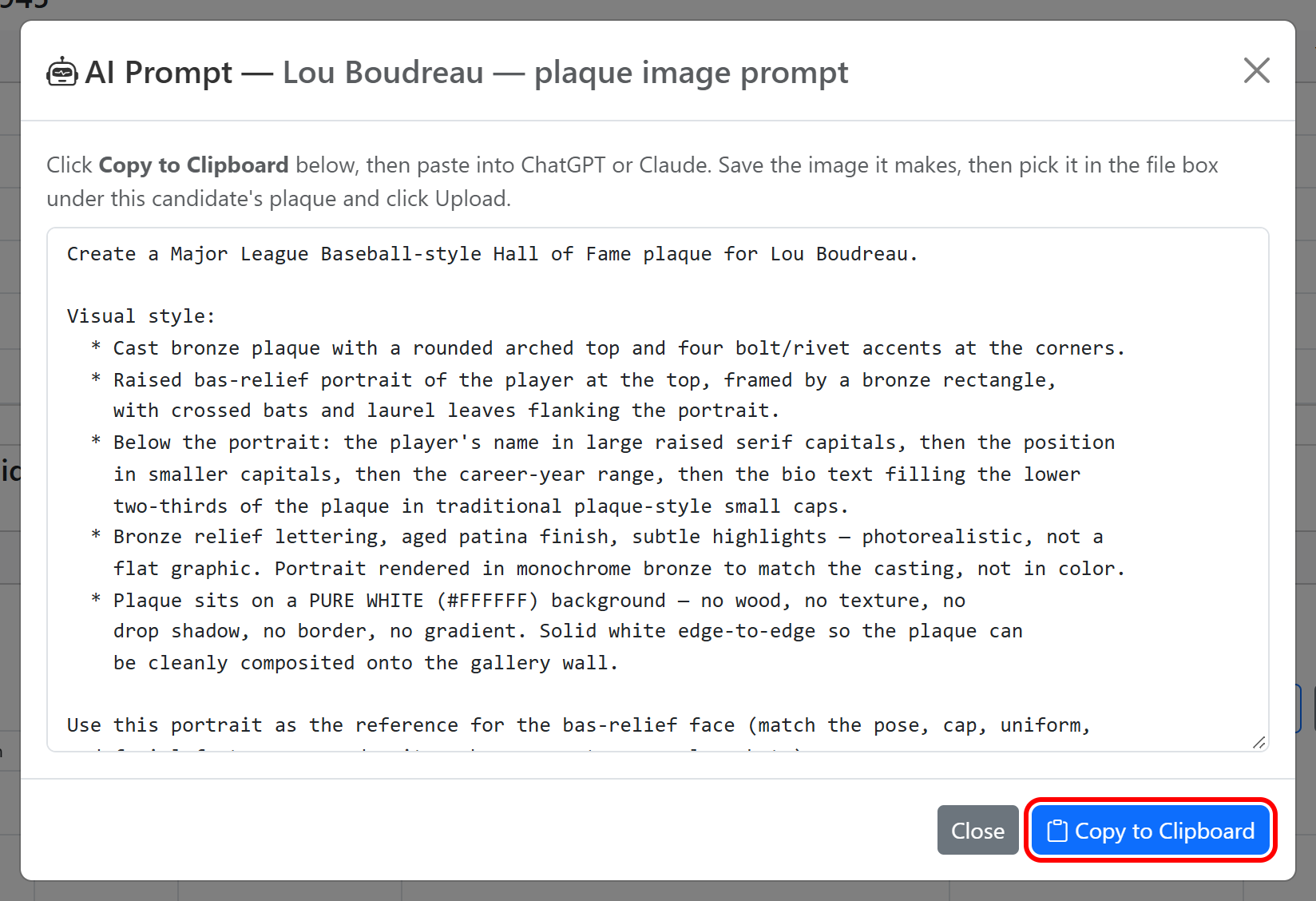
Paste the prompt into an AI tool that makes images. Save the image it makes to your computer.
Back on the player's row, choose the file box under the plaque, pick the image, and choose Upload. The word under the plaque changes to Uploaded.
To go back to the drawn plaque after uploading an image, choose the brush button. It replaces the image with a drawn one.
Leagues with the AI add-on
Leagues that have the AI add-on, a paid extra. Everything above still works in these leagues.
With the add-on, League Toolkit does both jobs for you. When a player is added to the ballot, Claude writes his bio, and then his plaque image is made from that bio and his photo.
- It runs in the background. You can keep working. The row shows AI bio & plaque in progress, and the page refreshes itself every 15 seconds until it is done. It does not refresh while you are typing in a box.
- Candidates are done one at a time. A plaque image can take up to a minute, so a full ballot takes a few minutes.
- When it is done, the bio is in the Bio box and the word under the plaque is AI image.
- If it fails, the row shows AI failed in red with the reason. Try again with the stars button, or draw or upload a plaque instead.
Two buttons appear only in these leagues:
- Write AI bios & plaques for nominees missing one, above the table. It queues every candidate who has no bio, no plaque, or only a drawn plaque.
- The stars button under each plaque makes a new AI plaque for that one player. It asks first, and it writes the bio too if the bio is empty. It does not replace a bio you have already written.
You can still edit a bio by hand, upload your own image, or go back to the drawn plaque with the brush button.
If the plaque is still Drawn after the AI has finished, the image service is not set up for the site. The bio is still written by Claude. Ask the site admin.
After induction
When a player is inducted, his plaque goes with him into the Hall of Fame. A drawn plaque is redrawn with the year he was inducted.
You can change an inductee's bio or plaque later in the HOF Inductees card near the bottom of the page: edit the bio or pick a new image in the file box, then choose Save. Tick Remove current plaque to take a plaque off. For the owner's side of the vote, see Vote for awards and the Hall of Fame. For every League Info switch, see League Info: every setting.