This page explains what you see on the draft pages. For step by step help, see the tutorials:
Draft Central
Choose the Draft Central tile on the dashboard (or Draft Central in the round menu button). It lists your league's drafts, newest first. Each draft has a status: Not Started, In Progress or Complete. A gold star marks the league's current draft. Choose a draft's name to open it.

While a draft is running, the dashboard also shows a blue box saying the draft is LIVE!, with the team on the clock and a Go to Draft button.
The draft page
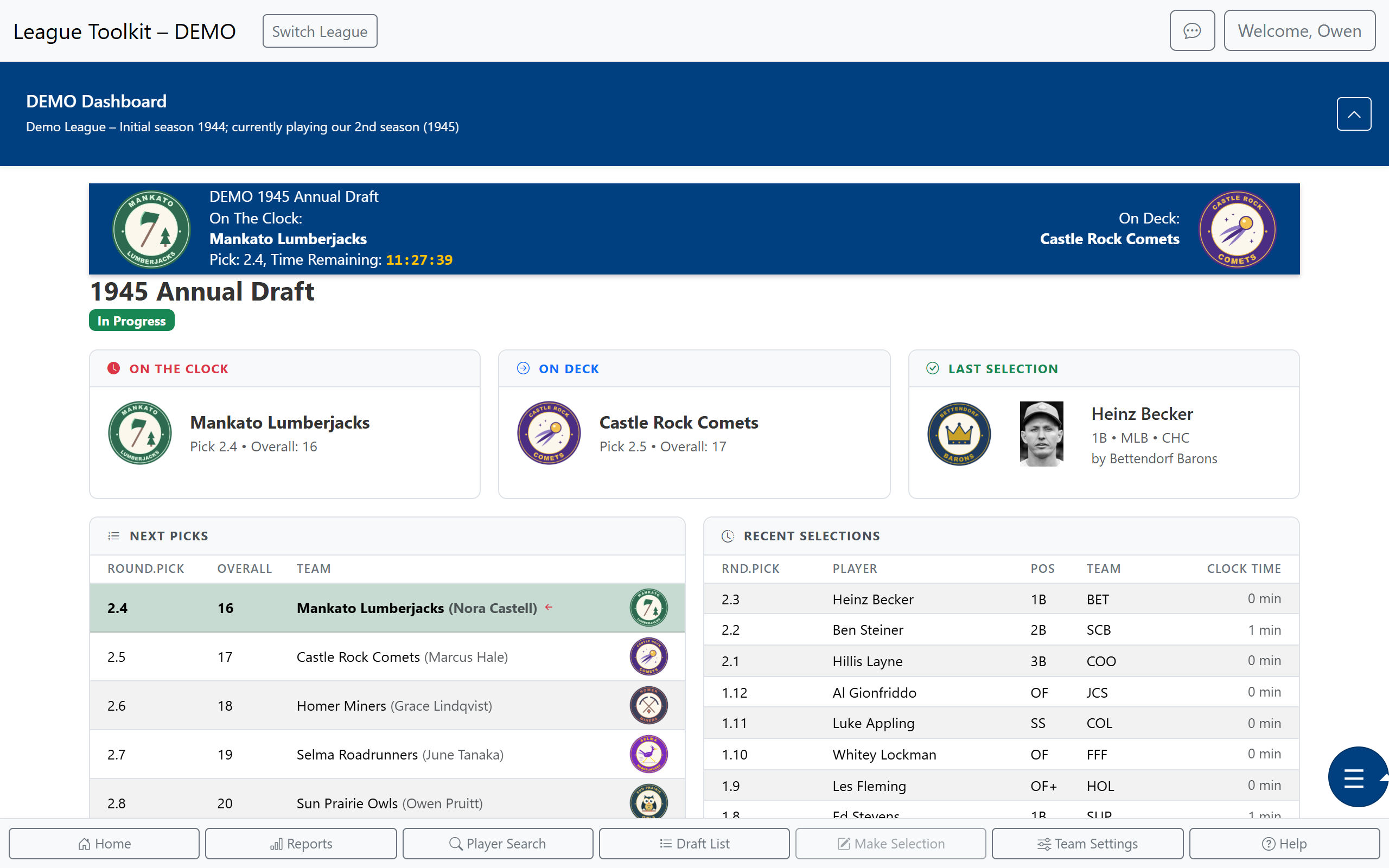
The draft page is the home of a draft. It keeps itself up to date while it is open: when a pick is made, the page changes on its own.
The blue banner
While the draft is running, a banner in the league's colour shows the team On The Clock, the pick number and the time left for this pick, and the team On Deck. In leagues that use a time bank it shows Clock Time Remaining and Time Bank Remaining; otherwise it shows Time Remaining.
Above the boxes
- The draft's name and its status: In Progress, Paused, Complete or Not Started. A yellow Soft Start label means the time bank is not being drawn down yet.
- You are on the clock! in a red box when it is your turn. See Make a draft pick.
- Download C-file, in some APBA leagues: the league's APBA file with every pick made so far.
- Acting as:, only if another owner has made you their proxy (see Proxies below).
The boxes
| Box | What it shows |
|---|---|
| On The Clock | The team whose turn it is, the pick (round.pick) and the overall pick number. In time bank leagues, that team's Time Bank. A small blue envelope with a number shows how many automatic emails have gone out for this pick; point at it to see them. |
| On Deck | The team that picks next. A List label with a number means that team's Draft List is turned on, with that many players on it. |
| Last Selection | The last player drafted: his photo, position, level, real team, and the team that took him. |
| Next Picks | The coming picks in order: Round.Pick, Overall and the team (with the owner's name). The current pick is green. See the labels below. In time bank leagues, a Time Bank column shows each team's minutes left. |
| Recent Selections | The picks already made, newest first, with the position, team and Clock Time (the minutes the pick took). A pick that was skipped, passed or forfeited shows as SKIPPED, PASSED, FINED or FORFEITED in grey. |
Labels you may see in Next Picks:
- (via XXX): a traded pick. XXX is the team it originally belonged to.
- List: 12: this team's Draft List is turned on, with 12 players on it.
- Auto-Pass: this team passes all its picks.
- FORFEITED: the team has lost this pick as a fine.
Below the lists
When they apply, up to three more boxes appear: Forfeited Picks, Draft List Enabled (teams that will pick from their Draft List) and Passing Teams (teams that will pass).
The bottom toolbar
The toolbar at the bottom of every draft page takes you around the draft. On a phone, only the icons show.
| Button | What it does |
|---|---|
| Home | Back to the draft page. |
| Reports | Opens Draft Reports (see below). |
| Player Search | Search the players who are still available. |
| Draft List | Your watch list and ranked Draft List. See Build your Draft List. |
| Make Selection | Make your pick. Green only when it is your turn; grey otherwise. |
| Team Settings | Your draft switches, skipped picks and proxies (see below). |
| Add Prospect | Prospect leagues only: add a player who has no card yet, so you can draft him. |
| Help | Draft Help: how the draft works in your league, including the time per pick. |
If you run two teams in the league, the toolbar starts with a button for each team's short name. Choose one to say which team the draft pages are for. Each team has its own Draft List, settings and picks.
Draft Reports
Choose Reports in the toolbar. The report groups are along the top; each group has its own row of tabs.
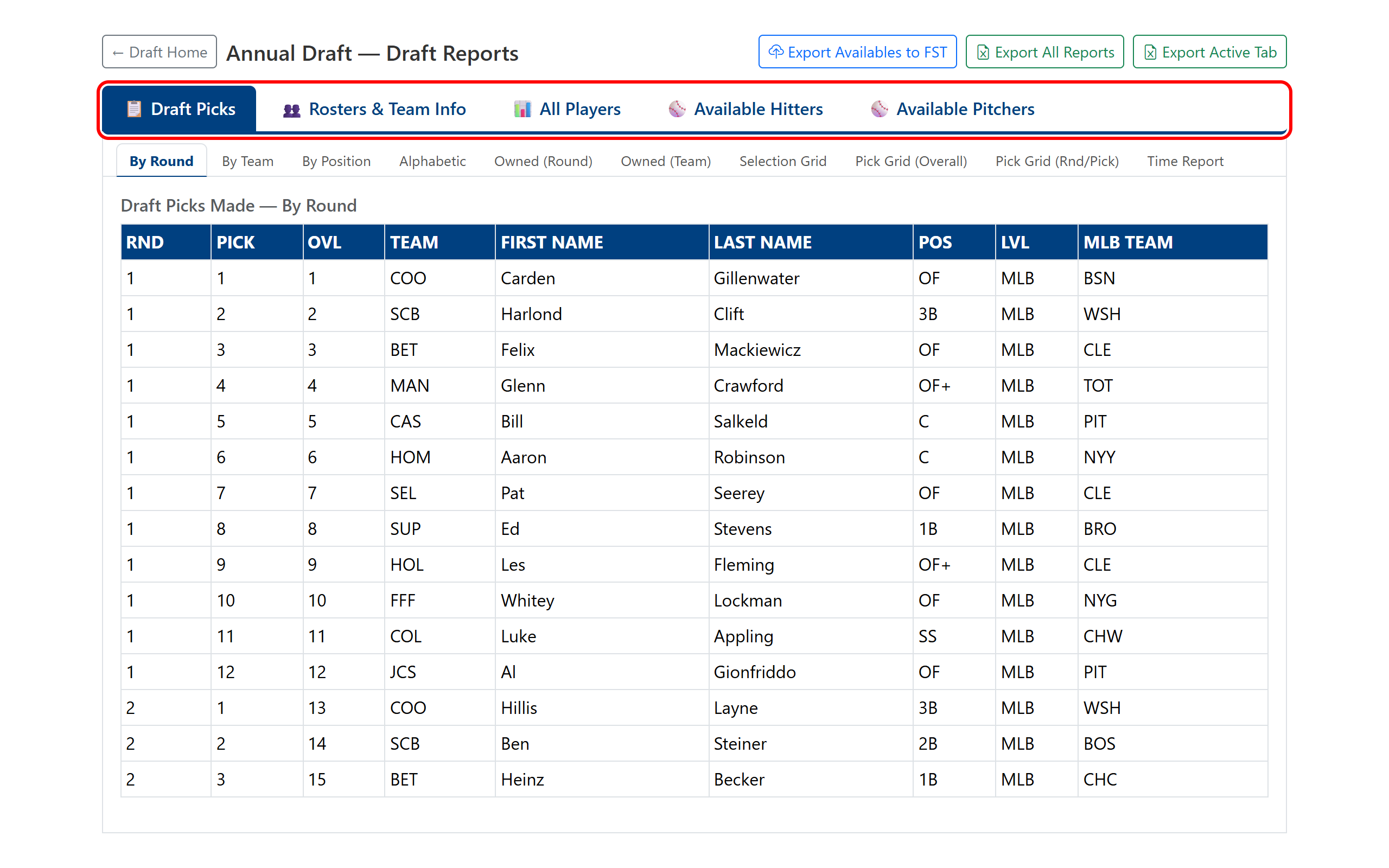
| Group | What is in it |
|---|---|
| 📋 Draft Picks | The picks made so far, sorted in different ways: by round, team or position, alphabetic, picks each team owns, grids of every pick, and a Time Report of how long picks took. |
| 👥 Rosters & Team Info | Every team's current roster, time bank tables, position coverage, and in some leagues salary or prospect reports. Then reports for your own team (they start with your team's short name): your roster, your picks in this draft, your watch list and your Draft List. |
| 📊 All Players | Every player in the draft pool. |
| Available Hitters and Available Pitchers | Players still available, with a tab for each way of sorting them (for example WAR). Choose the blue + next to a player to add him to your watch list. |
In hockey leagues the last two groups are Skaters and Goalies. In football leagues they are Offense and Defense, followed by Specialists.
Buttons at the top of the page:
- Export Active Tab and Export All Reports download the reports as an Excel file.
- Export Availables to FST sends the available players to your Fantasy Stat Tracker account. It needs an FST subscription.
- ← Draft Home goes back to the draft page.
The first time you open a list of available players it can take about 10 seconds to appear.
Player Search
Choose Player Search in the toolbar to open Search Available Players. Type the first letters of the player's last name and choose Search. Only players who have not been drafted are found. If nothing matches, the page says so and reminds you that the search matches the start of the last name; for a full name such as "Charlie Keller" it suggests trying just "Keller". Choose the blue + next to a player to add him to your watch list, or his name to open his player card.
This is not the same as Player Search on the dashboard, which finds any player in the league. See Stats, Reports and Archives.
Team Settings
Choose Team Settings in the toolbar to open Team Draft Settings for your team.
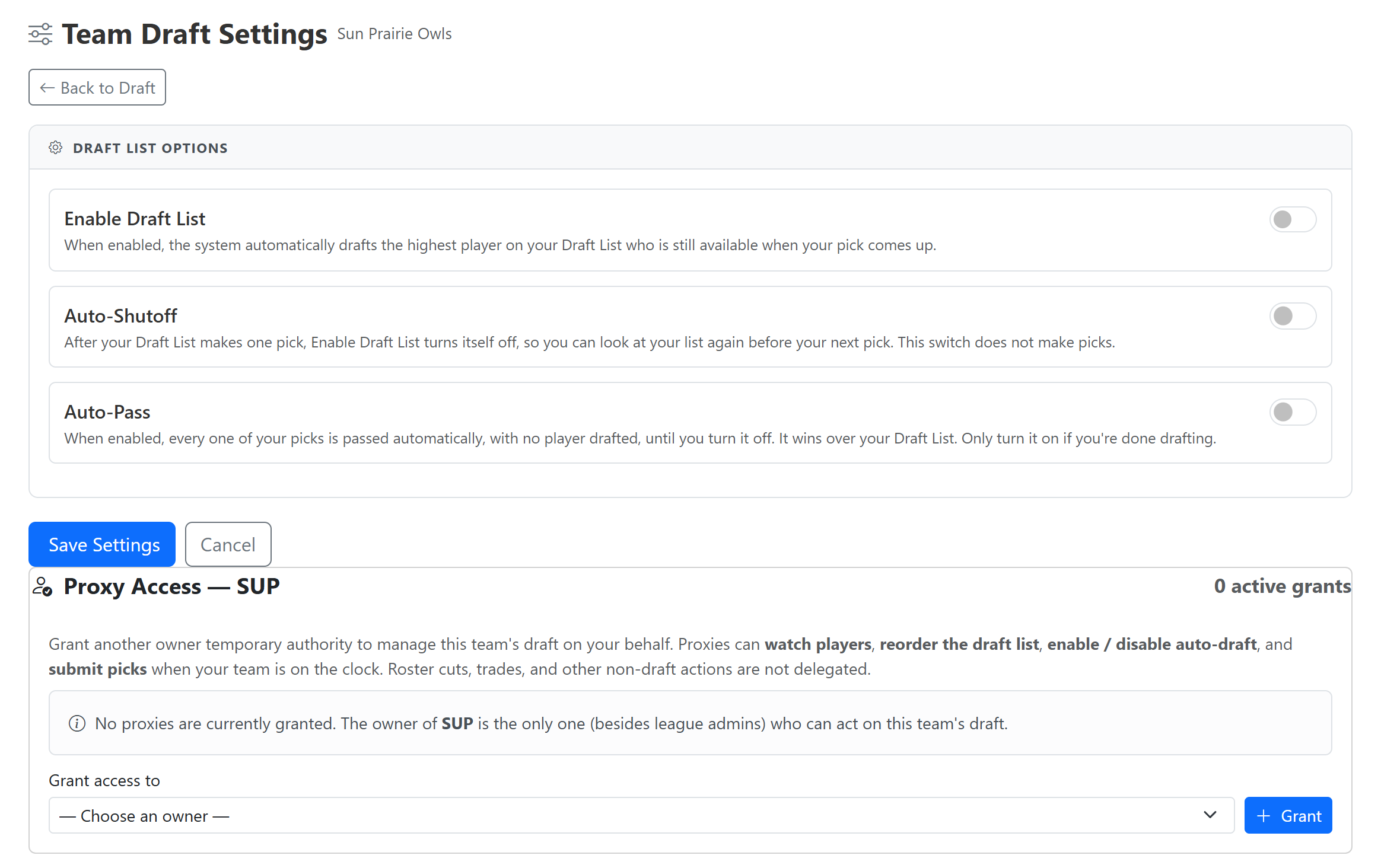
Draft List Options
The same three switches as on the Draft List page:
- Enable Draft List: when your turn comes, your top available player on your Draft List is drafted for you.
- Auto-Shutoff: after your Draft List makes one pick, Enable Draft List turns itself off.
- Auto-Pass: every one of your picks is passed, and nobody is drafted. It wins over your Draft List.
Here, unlike on the Draft List page, the switches are saved only when you choose Save Settings. See Build your Draft List for how they work together.
Update Skipped Pick
If one of your picks in this draft was skipped or passed, this box lists it. You can fill it yourself at any time: choose Fill Pick to search for an available player and fill it. Filling a pick adds the player to your roster and emails the league. A draft admin (usually your commissioner) can also fill it for you.
Proxies
A proxy is another owner you trust to run your draft when you cannot, for example while you are away. The Proxy Access box is at the bottom of Team Settings.
- To add a proxy, choose an owner under Grant access to and choose Grant. The owner gets an email.
- To remove one, choose the x next to their name and confirm.
- A proxy can star players, put your Draft List in order, turn your Draft List on or off, and make your pick when you are on the clock. A proxy cannot cut players, trade or do anything outside the draft.
- Proxy access is for this draft only.
If you are someone's proxy, the box lists their team under You also have proxy access to:, and an Acting as: bar appears at the top of the draft pages. Choose their team's short name in that bar to work on their draft; a PROXY label shows you are acting for them. Choose your own team to go back. While you act for them, toolbar buttons read Draft List (proxy) and Make Selection (proxy).