A trade proposal is an offer you send to one other team: the players (and picks) you give, and the ones you want back. The other owner can accept it, send back a counter-offer, or reject it. Every proposal runs out after 7 days.
Trade proposals only appear when your commissioner has switched them on for the league. If you do not see a Propose Trade button on other teams' pages, ask your commissioner.
Send a proposal
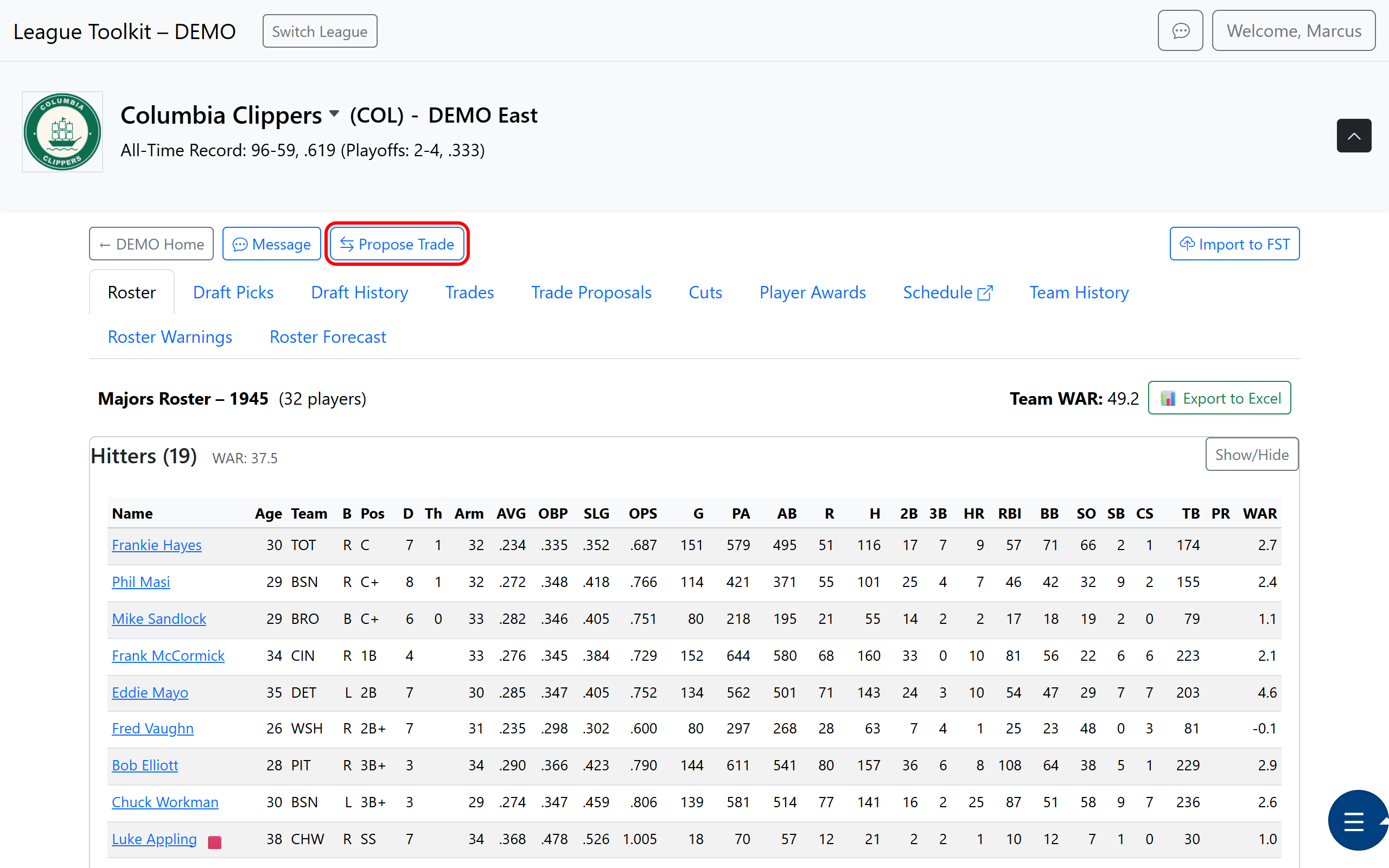
Open the page of the team you want to trade with.
Choose Propose Trade under the team's name.
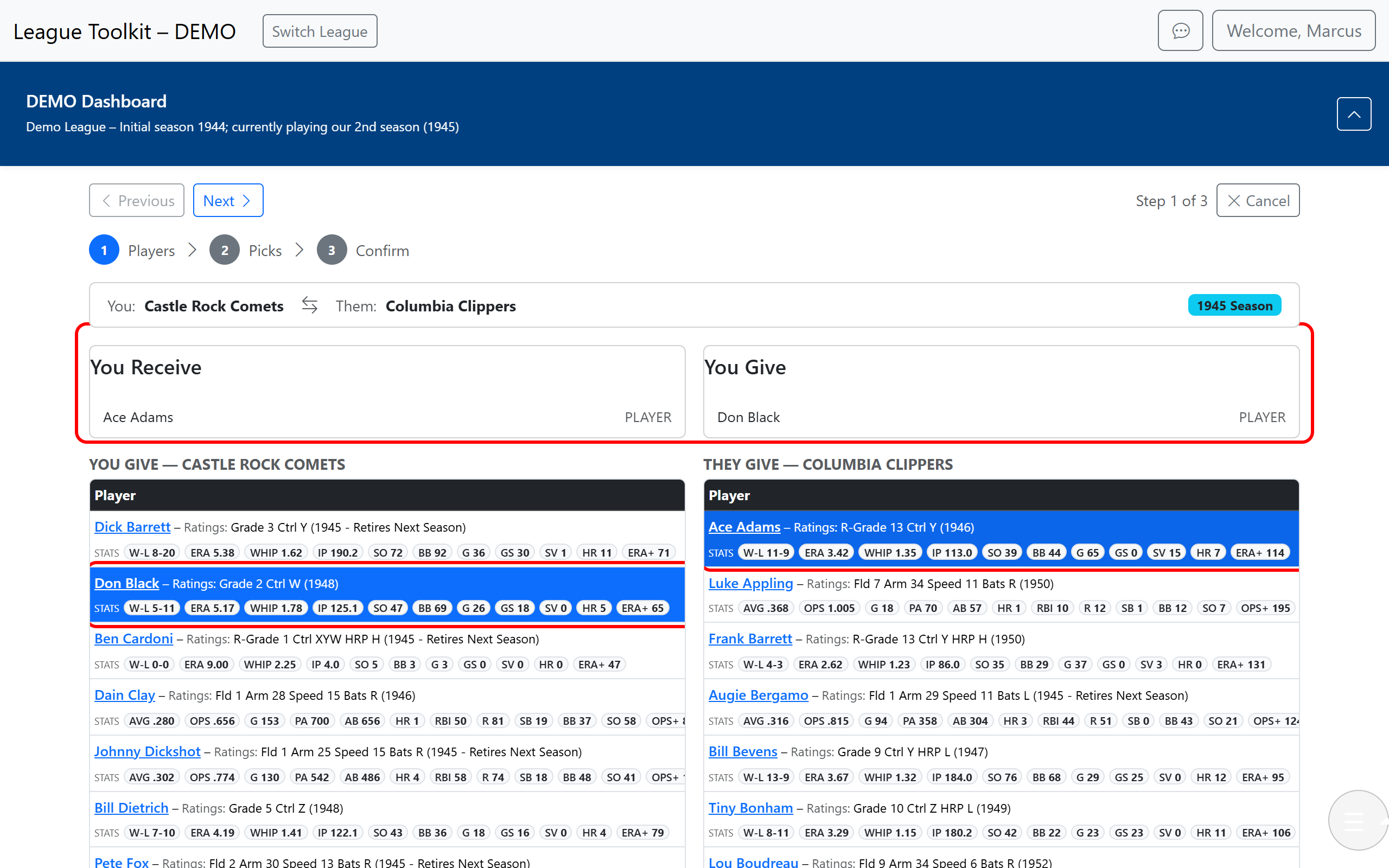
The Propose Trade page opens on step 1, Players. Your players are on the left under You Give. The other team's players are on the right under They Give.
Choose a player's row to add him to the trade. The row turns blue and the player shows in the You Receive or You Give box at the top. Choose the row again to take him out.
Choose Next to go to step 2, Picks. Add draft picks the same way, or leave them out. The lists can take a few seconds to fill in.
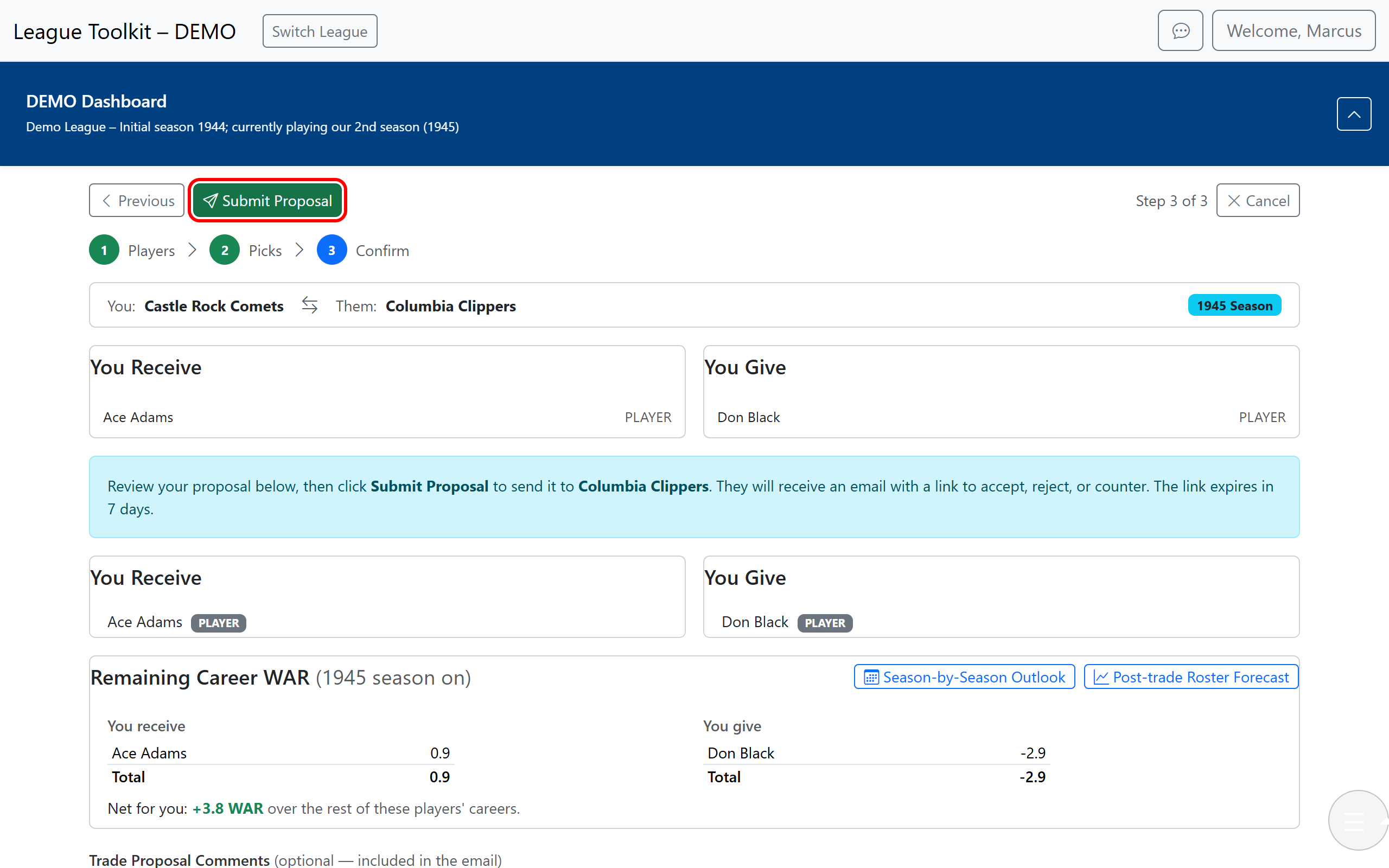
Choose Next again to go to Confirm. Check the You Receive and You Give lists.
If you like, type a note in Trade Proposal Comments. It goes into the email to the other owner.
Choose Submit Proposal at the top. A Confirm Trade Proposal box lists both sides. Choose Submit Proposal in the box to send it, or Cancel to go back.
After you send it, you land on your own team page, on the Trade Proposals tab. Your offer is under Awaiting Their Response. There is no "sent" message. The other owner gets an email with a Review Proposal button.
Choose a player's name (not the rest of the row) to open his player card in a new tab. This does not add him to the trade.
In leagues with prospects there is one more step, Prospects, before Confirm.
If the trade breaks one of your league's limits (roster size, contract years, prospects, salary cap, or a rule that both sides must give the same number of players and picks), an error message explains which one, and nothing is sent. Change the trade and try again.
You can also start a proposal from your own Trade Proposals tab: choose New Trade Proposal, pick a team under Propose to:, then choose Go.
When someone sends you a proposal
You hear about it three ways:
- An email with a Review Proposal button.
- On your league home page, under Needs your attention: "1 trade proposal awaiting your response", with a View Proposal button.
- On your team page, the Trade Proposals tab shows a red number.
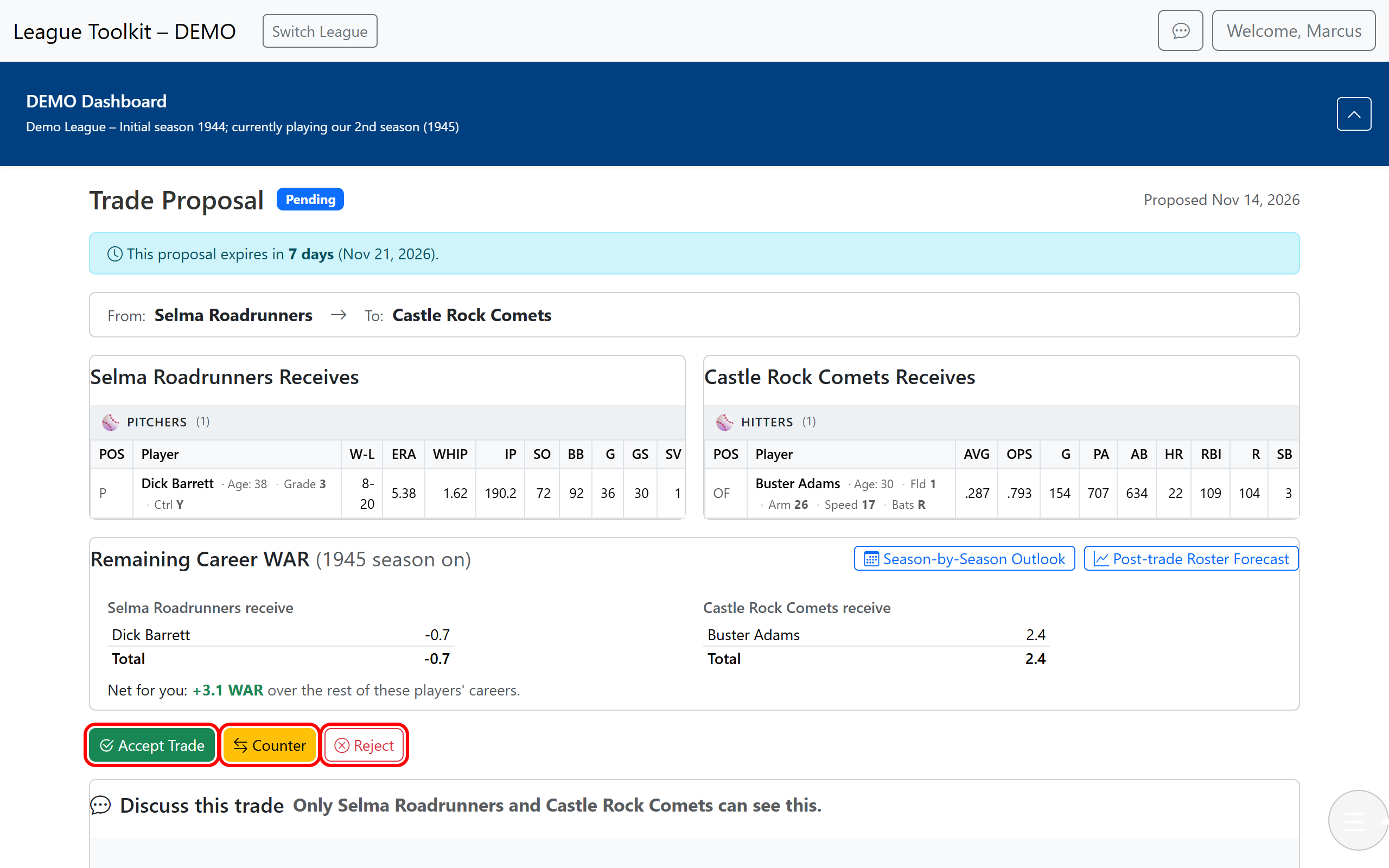
On the Trade Proposals tab, the offer is under Awaiting Your Response. It shows who sent it, what They receive, what You receive, and when it expires.
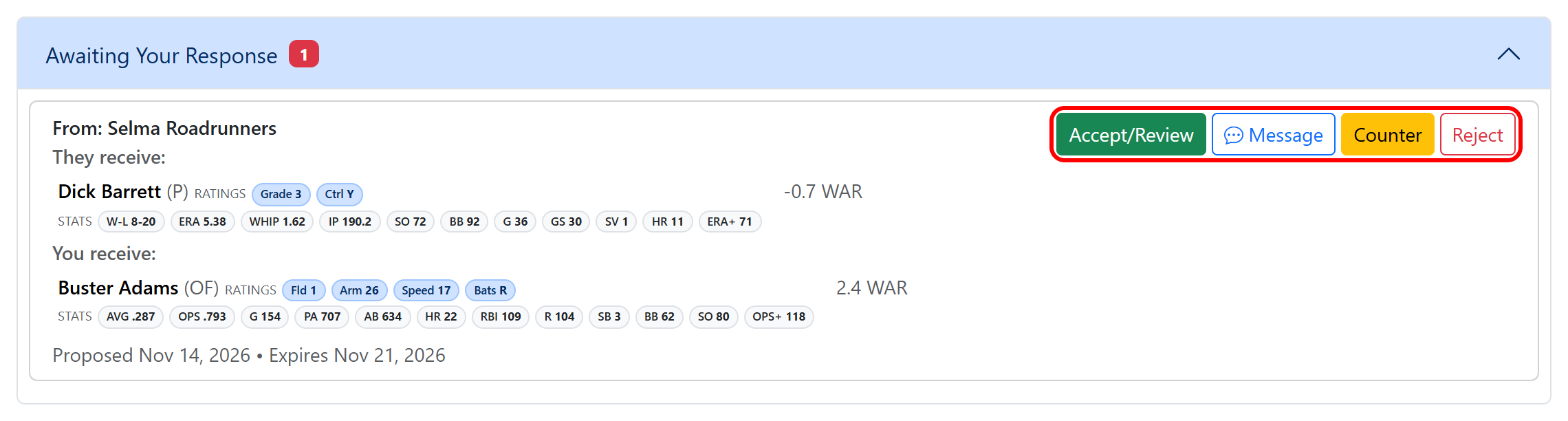
You have four choices:
- Accept/Review: opens the full Trade Proposal page. To take the deal, choose Accept Trade there, then OK to confirm.
- Message: ask a question or bargain without answering yet. See Talk it over below.
- Counter: send back a different offer. See Counter an offer below.
- Reject: turn the offer down.
Reject an offer
- Choose Reject.
- On the Reject Trade Proposal page, you can type a Rejection note (optional). It goes in the email to the other owner.
- Choose Confirm Rejection. Choose Back instead if you change your mind.
Counter an offer
- Choose Counter. The same three-step page opens, but now you are the one making the offer.
- The page starts empty. Choose Keep original assets to start from their offer and change it, or Start clean to build a new one.
- Choose players and picks, then Next, as in Send a proposal above.
- On the last step choose Submit Counter, then Submit Counter again in the Confirm Counter-Proposal box.
Your counter replaces their offer. Their original offer moves to History as Rejected, and the other owner gets an email about your counter. Your counter waits under Awaiting Their Response like any offer you send.
Talk it over
Message opens the Discuss this trade box at the bottom of the Trade Proposal page. Type your message and choose Send (or press Ctrl+Enter). Only the two owners in the trade can see it, and the other owner gets an email each time you post.
Change or take back your own offer
Your sent offers are under Awaiting Their Response on your Trade Proposals tab.
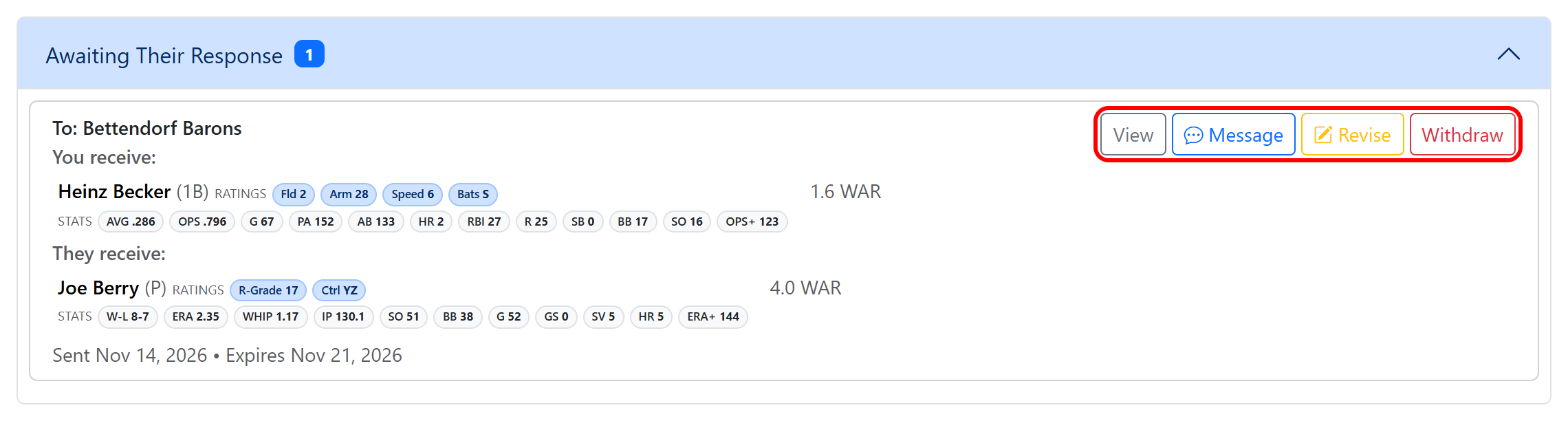
- View: opens the Trade Proposal page.
- Message: talk it over with the other owner.
- Revise: change the offer. The page opens with your current offer already chosen. Make your changes and choose Submit Revision. This updates the same proposal and keeps your messages. The other owner gets an email, and the 7-day clock starts again.
- Withdraw: take the offer back. Choose OK to confirm. It moves to History as Withdrawn, and the other owner gets an email saying you withdrew it.
After an offer is accepted
If your league does not need commissioner approval, the trade happens at once. The owner who accepted sees "Trade processed. Transaction" and a number. The players and picks move to their new teams, and the owner who sent the offer gets an email. If your league has a league email address, the whole league gets the trade email too.
If your league needs commissioner approval, nothing moves yet. The owner who accepted sees this message: "Trade accepted and forwarded to the commissioner for approval. The trade will not be processed until the commissioner approves it." The offer moves to History as Pending Approval, and the owner who sent it gets an email.
- If the commissioner (or a Roster Admin) approves it, the trade happens then, and the owner who sent the offer gets an email that it is official.
- If the commissioner (or a Roster Admin) denies it, it shows as Rejected, with the commissioner's reason as the Rejection note. The owner who sent the offer gets an email.
Good to know
- Expiry: an offer nobody answers runs out after 7 days. It moves to History as Expired and can no longer be accepted. The Trade Proposal page shows how many days are left.
- Trade window closed: when your commissioner closes trading, the Propose Trade button is grey with a lock, and the Trade Proposals tab says "The trade window is currently closed. New trade proposals cannot be submitted at this time." If you open a proposal, counter or revise page anyway, you are sent back to your team page with a message that the window is closed. Offers that are already waiting cannot be accepted until the window opens again.
- Players already gone: when a trade goes through, any other open offer that includes one of the same players or picks is withdrawn by itself. An offer that includes a draft pick is also withdrawn when that pick is used in the draft.
- History: the History list on your Trade Proposals tab shows every offer that is finished, with its result. Choose View to see one again.
- To list players you are willing to move, see Post your Trade Block.